

What is Display in Google Analytics 4?
One of the top use cases of Google Analytics 4 is to analyze incoming traffic and understand which marketing campaigns are performing the most effectively.
That’s where Acquisition reports become very important. But here’s a situation: you open your Traffic Acquisition report, and you see Display.
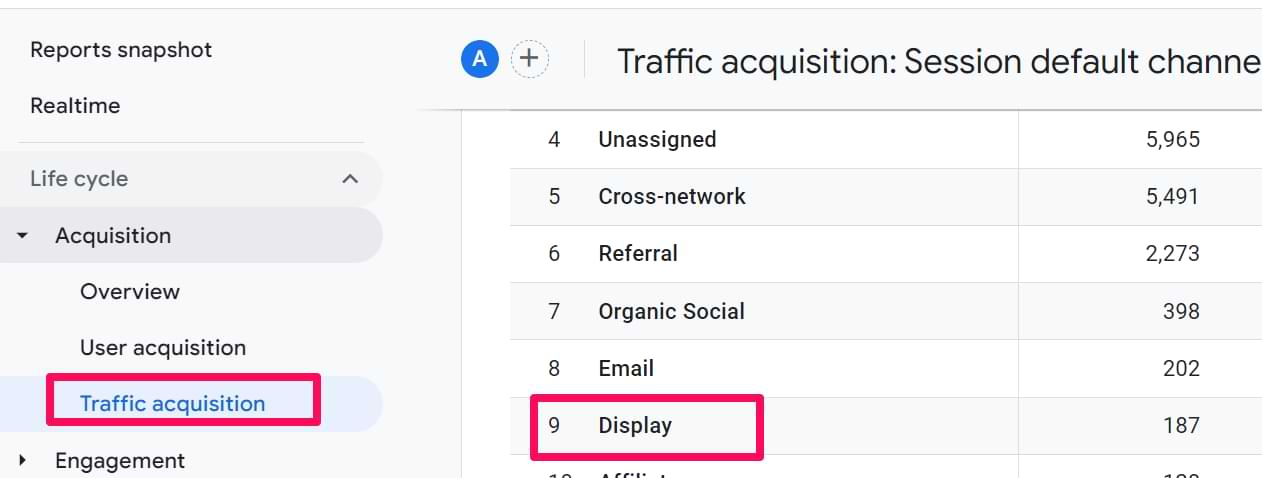
What does that mean? In this quick blog post, I will explain what channel groups are (including Display).
First, let’s take a look at channel groups
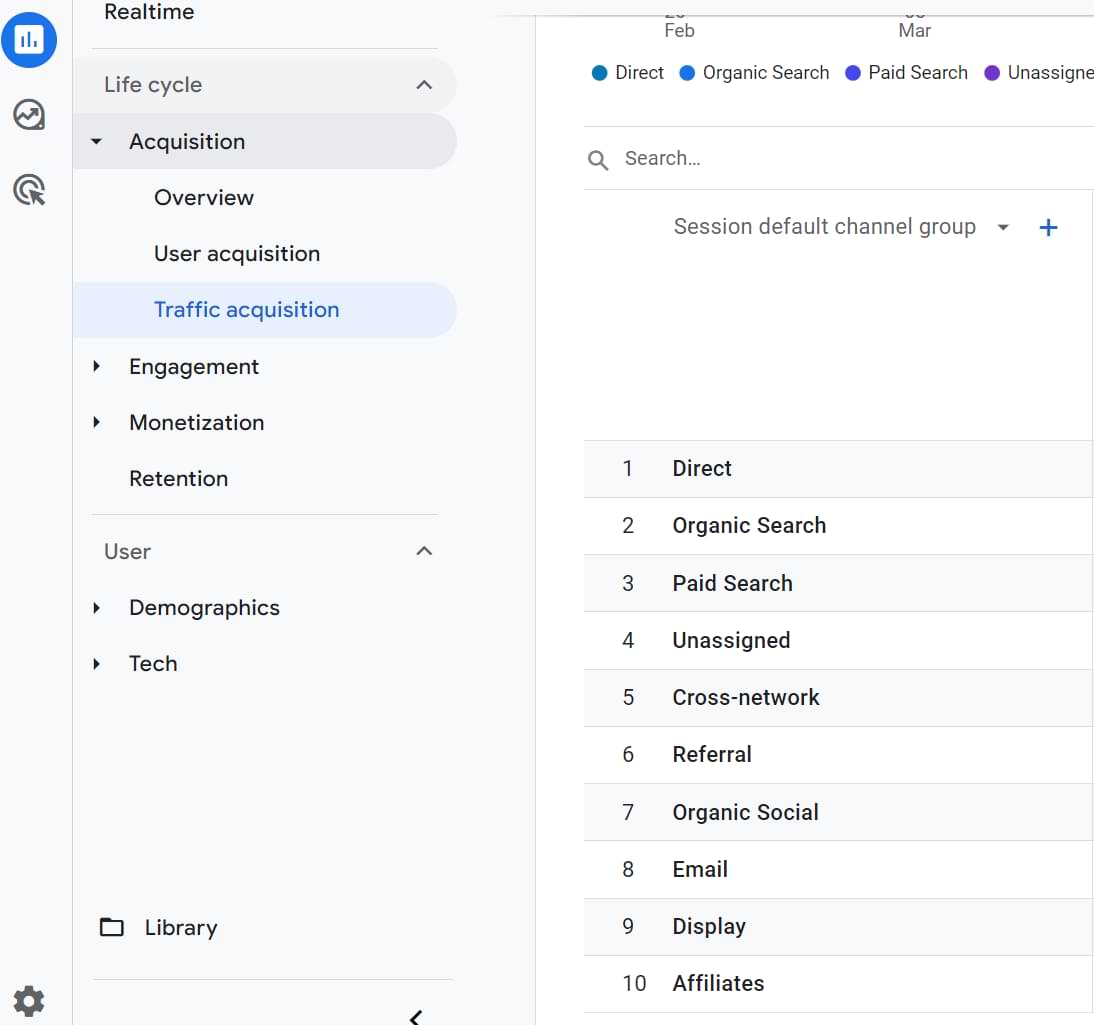
Before diving into the specifics of the Display channel, it’s crucial to understand the concept of default channel groups in GA4. People can come to your website from different traffic sources (social networks, video pages, etc.). That’s where source and medium become useful for us, GA users. But what if you have hundreds or thousands of unique traffic sources? It would be useful to group them, say in 10 or 20 buckets, right?
That’s where channel groups are helpful. They are predefined categories that automatically classify incoming traffic sources based on certain criteria, such as the medium, source, or campaign attributes.
These channel groups help marketers and website owners to quickly assess the performance of various marketing channels and make data-driven decisions. Some common default channel groups in GA4 include:
- Direct
- Organic Search
- Paid Search
- Social
- Display
And now let’s take a deeper dive into the Display Channel.
What is Display Channel in GA4?
The Display channel groups traffic coming from display advertising, such as banner ads (including Google Display Network). But how does Google Analytics know the visitor came from the banner ad? Thanks for the UTM parameters and the direct integration with Google Ads.
If a visitor comes from Google Ads and you have linked them with Google Analytics, then GA will be able to easily distinguish banner (display) ads from other traffic sources.
If a visitor comes from somewhere else (e.g., Facebook ads), then you are responsible for tagging your links with UTM parameters. According to Google’s documentation, for traffic source to be included in the display channel, utm_medium must be one of these:
- display
- banner
- expendable
- interstitial
- cpm
So, if a visitor lands on your site and the landing page’s URL looks like this: https://example.com?utm_medium=display&utm_source=facebook.com&utm_campaign=summer_sale, then this session will be included in the Display channel.
Display in Google Analytics: Final Words
Channel groups help you see a 10,000-foot view of your traffic sources and how each “bucket” is performing. And one of those groups is Display.
As long as you have connected your Google Ads to GA or you have properly tagged links with UTM parameters, your Display channel should definitely contain some traffic numbers and should give you a better idea of how it performs. Just ensure there are no typos in the utm_medium, otherwise, the traffic will end up in the “Unassigned” channel.