


September 16, 2024
How to copy Google Tag Manager tags between containers?
Updated: September 16th, 2024
I occasionally receive the following question: how can someone copy Google Tag Manager tags between containers? And that’s a totally valid question. Instead of manually copying field by field from one container to another, you could simply hit Copy-Paste and move assets between containers.
In this blog post, I’ll look at three options for copying Google Tag Manager tags (triggers or variables) between containers. You’ll probably not learn anything new here if you are already an intermediate (or higher) GTM user. However, aspiring beginners will surely find something to take away from this.
Best option: Built-in Export-Import feature
This is the complete solution (and my preferred way).
In case you didn’t know (which is very unlikely), GTM allows users to use import and export features to move the content of the entire container from one container to another. Previously, this function would export the entire container. But now, you can selectively choose the content you want to export.
Thanks to import/export, such things as Google Tag Manager recipes exist. If you constantly work with multiple Google Tag Manager containers and every month/week you get access to new ones, you could prepare a container template that includes the most common tracking solutions (e.g., outbound link clicks, document downloads, etc.).
That container template could then be imported into every new container you use. #timesaving
In this post, I will not explain how to decide which tags, triggers, and variables should be included in that container template. That’s up to you, your company/agency, and your internal work principles. So I’ll skip that part.
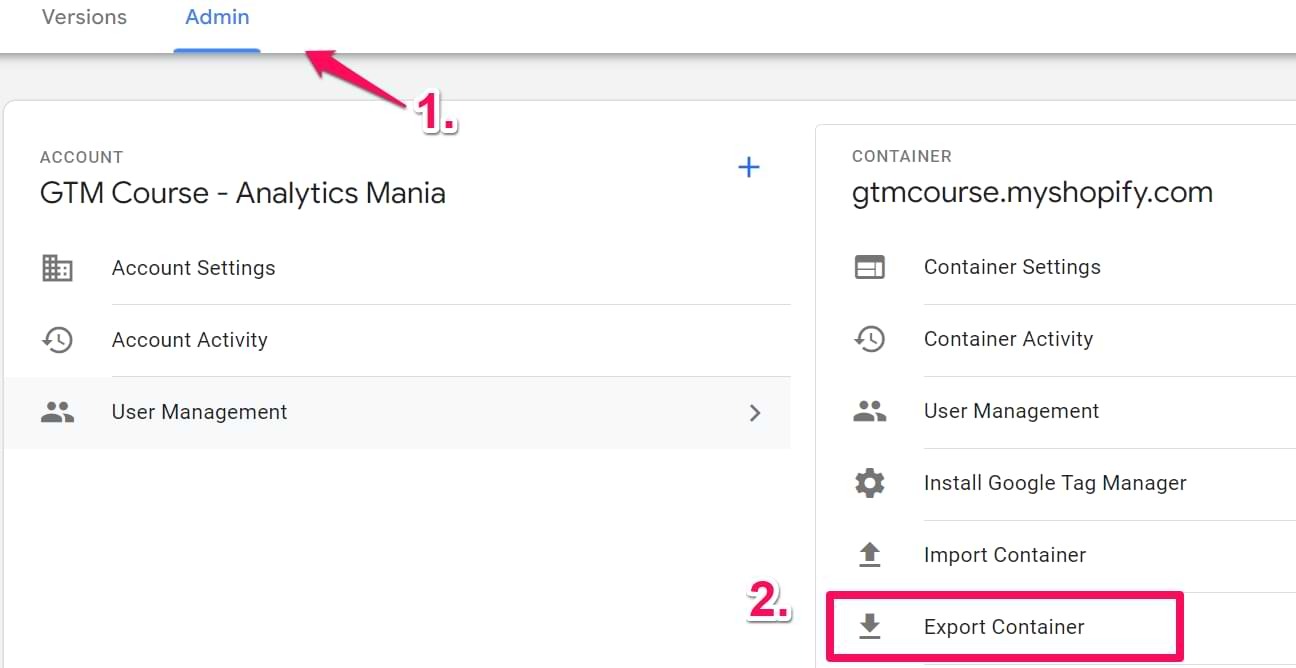
But if you have already created a separate Google Tag Manager container to make it a template, go to its Admin section (1) and choose Export Container (2) in the Container column.
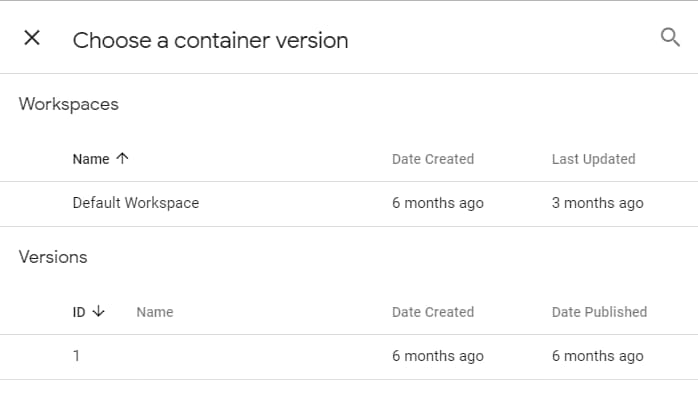
Choose the workspace or the version that you want to export
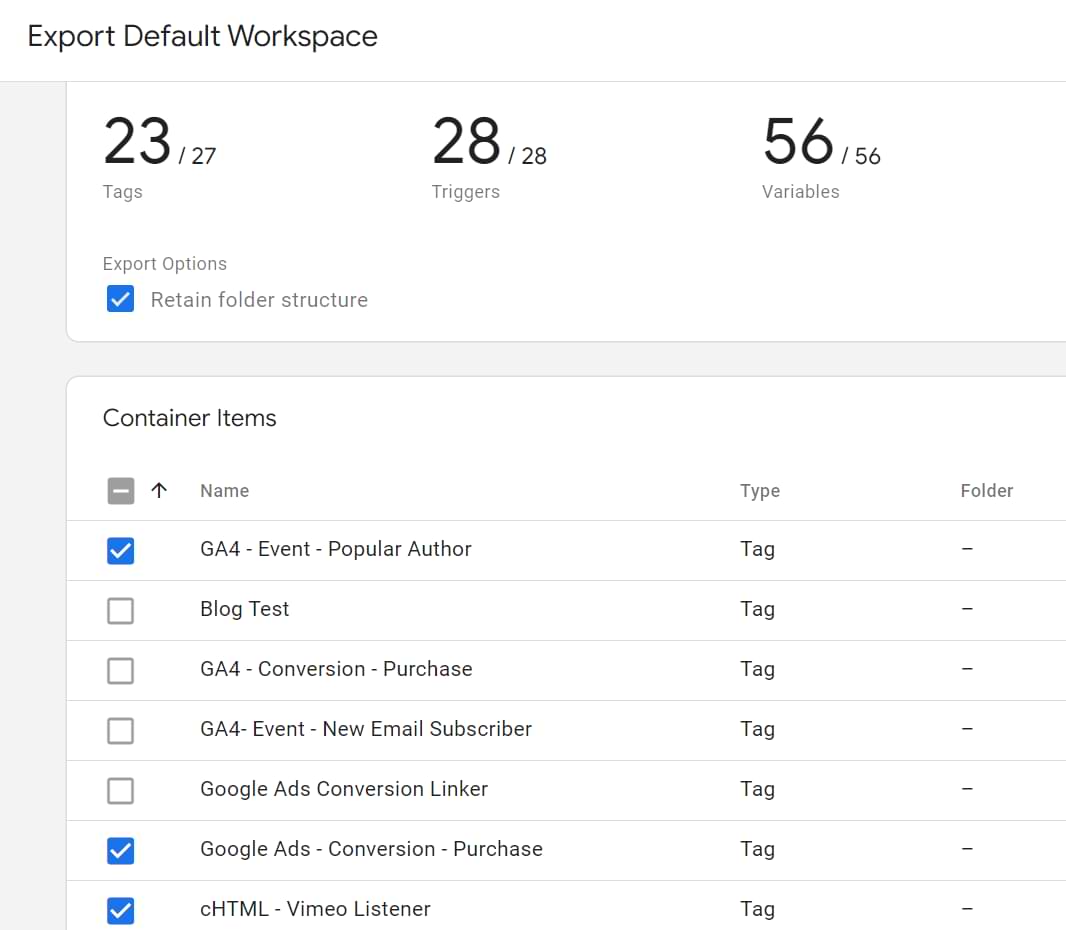
And you’ll see the container assets. Choose the ones that you want to export, whether it be tags, triggers or variables.
After this, hit Preview to see the JSON code. This is optional, though, and you could directly hit Export.
That’s it! Next time you receive a new project and a GTM container, import that container.
GTM Copy Paste extension
In 2018, Julian from Measureschool created a cool Google Chrome Extension called GTM Copy Paste. It enriches the UX of Google Tag Manager by adding a tweak: you can right-click on an item in your GTM container (tag, trigger, or variable), copy, and then paste it into another GTM container.
And that is super neat! Here’s how it works. First, you need to install the extension on your Chrome browser. After that, click the icon, and you’ll be asked to log in. Use the same account with access to those Google Tag Manager containers (you’ll be working with).

Then go to your Google Tag Manager interface and right-click on the asset you want to copy (this will fluently work in the Overview of your container, as long as the dedicated pages of tags, triggers, and variables).
If you don’t see the option to “Add to GTM Copy/Paste”, you should refresh the page. If the issue persists, contact Julian with the bug report.
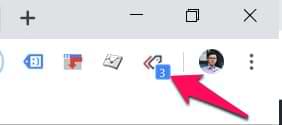
Back to copying, every time you click “Add to GTM Copy/Paste”, a number will increase in the extension’s icon. It indicates how many assets are currently selected.
If you want to see the complete list of the selected items, click the extension icon.
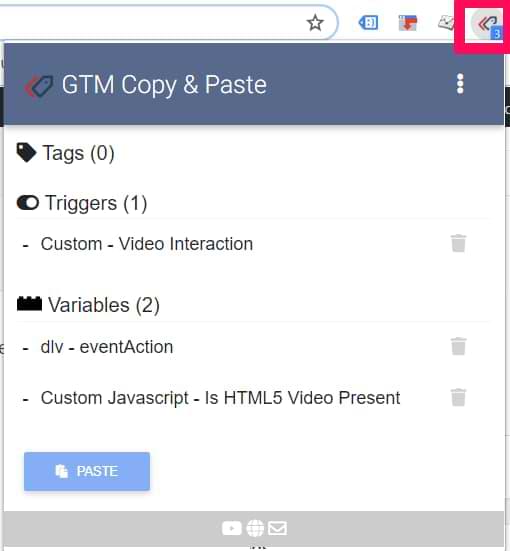
See something you don’t like? Hit the trashcan next to it.
After selecting all the items you want to move from container A to container B, the time has come to paste. In your Google Tag Manager interface, switch to container B.
Then click on the GTM Copy Paste icon and press the Paste button.
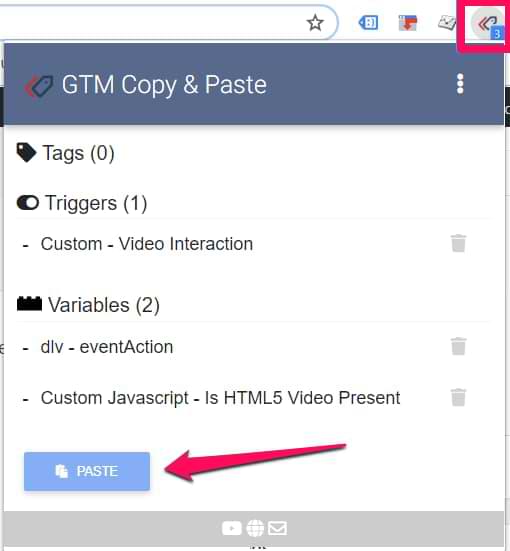
That’s where the magic starts! You’ll see the progress bar of all items being pasted to container B. If you want to see the complete list of assets added to container B, head over to the Overview of the container (in the GTM interface) to see all the changes (including those you did before doing the Paste Magic).
Want to learn more about this extension? Here is an intro video.

GTMtools.com
Another solution for how to copy Google Tag Manager tags, triggers, or variables is to use Simo Ahava’s GTMtools.com.
It offers multiple useful GTM-related features (like Container Visualization). However, I’ll focus solely on copying container items in this guide.
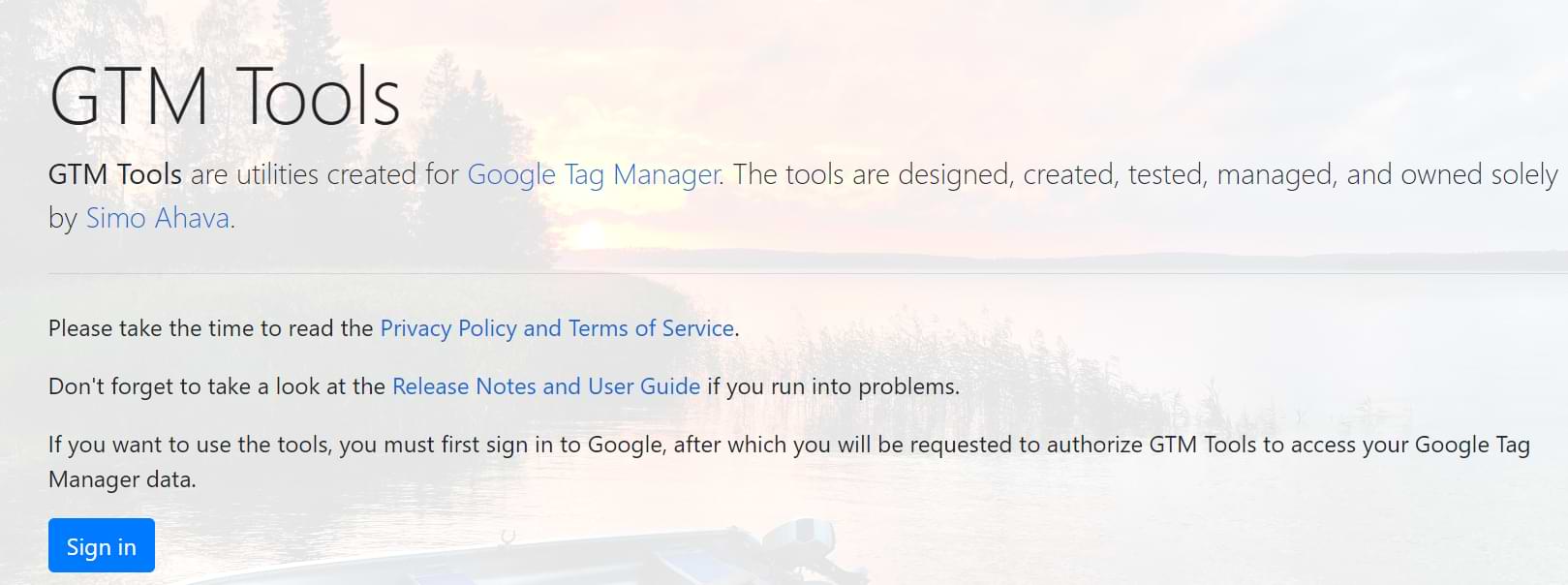
To get started, go to gtmtools.com and press the Sign in button.
You’ll be asked to give access permission to various things in Google Tag Manager.
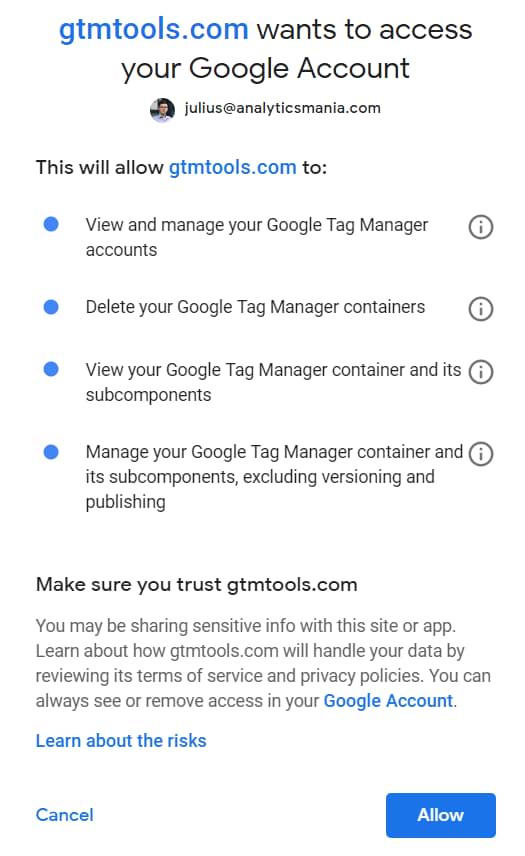
Press Allow. If there are any additional steps (from Google Authorization), complete them as well. Long story short, follow all steps until you log in to GTM Tools.
Inspecting the container
Get started by clicking the GTM Account dropdown in the top menu bar and choose the account from which you want to copy/export something. In my case, it’s a mysterious website called Demo 8.
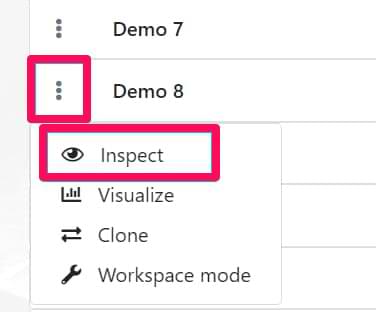
Each Google Tag Manager account can have multiple containers. After choosing an account, click three dots next to the desired container and then choose to Inspect.
Next, you’ll see the content of a container split into three groups – tags, triggers, and variables.
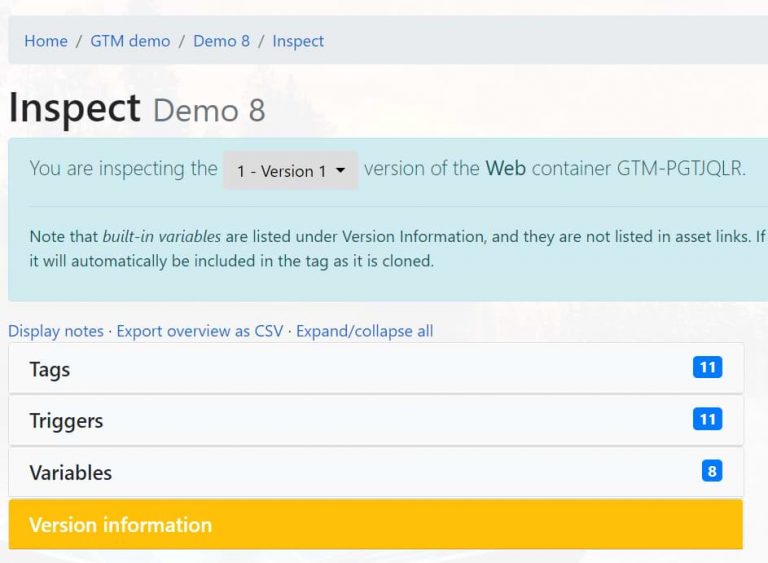
The box of each group is clickable and can be expanded, and this is precisely what we’ll do. Say, that we want to check which tags are available; click Tags.
Picking up the goods
What we’re going to do next is “shopping”. Start adding all needed tags, triggers, and variables to the cart. You must only click the green Plus icon next to each container element (asset). If the icon is a red minus, the item has already been selected.
You can do “shopping” in multiple containers (e.g. pick a tag from container A and a trigger from container C). Later, all assets (added to the cart) will be cloned to another container.

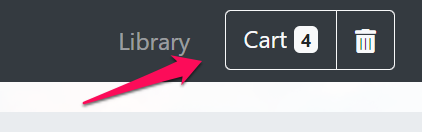
After you’re done picking all the goods, go to the Cart (by clicking the button in the top right corner of GTM Tools).
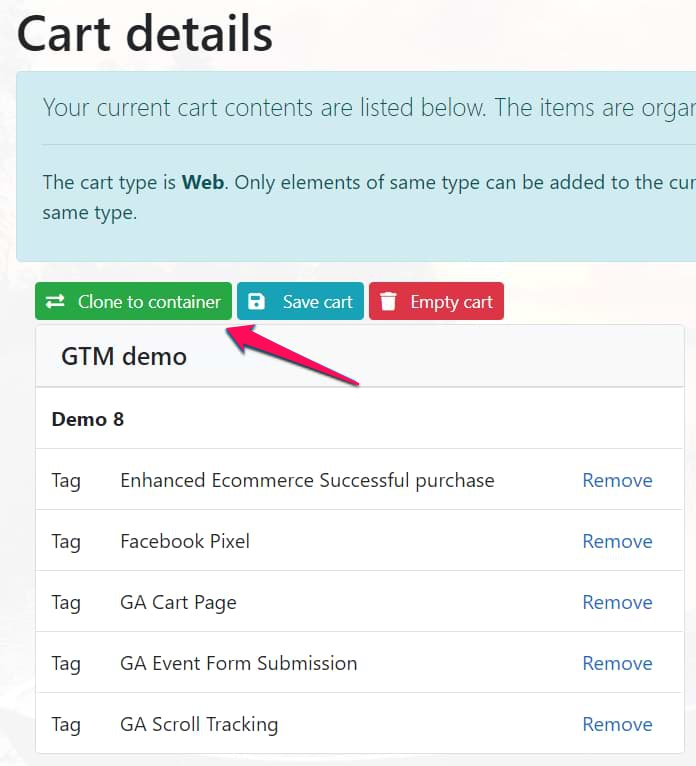
We’re getting close. Let’s clone everything from the cart to the target GTM container; click the green Clone to Container button.
In the confirmation popup, you’ll need to:
- Choose the target GTM account and container
- Choose the workspace within that GTM container.
Confirm the action by clicking the Clone button.

Done! All the items you have added to the cart are now copied to container B. Just as it was with Julian’s Chrome extension, you can see all changes in the Overview of the container.
Testing
It does not matter which copying technique you choose. You need to test whether everything is working correctly. It does not matter how small the change was; don’t trust yourself (at least, I don’t trust myself). I had fallen into this issue too often when an innocent change broke something I completely forgot.
If needed, modify those newly added tags, triggers, and variables. This includes (but is not limited to) changing Tracking IDs (e.g. Google Analytics or Facebook Pixel).
Lastly, enable GTM Debug mode and test, test, test.
Last words on how to copy Google Tag Manager tags between containers
Even though the blog post title mentions only tags, of course, you can also export triggers, variables, and templates. The built-in Export option is versatile and can be used depending on your use case.
And if this solution isn’t what you’re looking for, then look at Simo Ahava’s and Julian Juenemann’s alternatives, copy-pasting in GTM isn’t difficult or time-consuming.
Using Chrome? Copy and paste with Julian’s browser extension
Don’t use/like Chrome? Use Simo’s gtmtools.com
On a side note, I’d like to praise the entire GTM/Analytics community for creating and sharing stuff with others. GTM Copy Paste and GTM Tools are great examples of this. People create, share, teach, and learn from each other. The industry’s openness is one of the main reasons I like being here. I learn something new every week, and there’s still a mountain of possible learning topics that await. Damn, it feels good

6 COMMENTS
That was really helpful. It just saved me hours. Many thanks, Julius!
GTMtools didn't find any folders in my container, even though I've got many! Therefore, I couldn't just copy the whole folder and paste it across other containers, instead I had to do it tag by tag. Is it a bug?
Hi Julius, Thanks for the instructions.
Is there a way to clone a normal container into an AMP container?
The export-import method doesn't work because apparently the json is in different formats. The same goes for the Chrome extension, and I can only guess it'll be the same for the last method.
Right now I'm stuck with having to manually re-create the container, which isn't something I'd like to do.
Web and amp containers are different. Therefore, direct migration is not available.
Please note the GTM copy/paste is not working 100% anymore. Triggers will not be copied if you select a tag or if you try to copy them separately.
Several days ago, Julian posted on Twitter that the bugs were fixed (I haven't tested that though).