


September 24, 2024
Click Element “contains” not working in Google Tag Manager
Have you ever set up a trigger using the Click element and Google Tag Manager, tested your tag, and found that it wasn’t working? You double-check that you’ve followed all the right logic, but it’s still giving you issues!
Clearly, this must be a bug in GTM, right? Well, before you drive yourself crazy, let me ask you one question: did you use Click element “contains” in your trigger?
We may have discovered the problem! Let’s dive into it!

Video tutorial
If you prefer video content, here’s a tutorial from my Youtube channel.
Surprise! The click element is an object
The click element trigger in GTM allows you to fire tags when users interact with specific elements on your site, such as buttons, which is why it’s very useful!
However, something you may not know is that even though the Click element (gtm.element in the screenshot below) appears like a string in Preview mode, it’s actually an object!
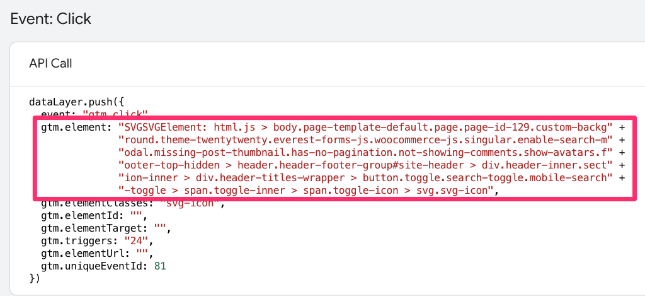
As a quick reminder, a string is just a sequence of characters, e.g. “Hello world”, and an object is like a container that can hold multiple pieces of data, including strings and numbers, e.g. items = {item_id: 123, item_name: “t-shirt”}.
const myString = "Hello world!" // string
const items = {item_id: 123, item_name: "t-shirt"} // object
Click Element works only with “matches CSS selector”
When working with the Click element, you can only use two trigger operators that include the term “CSS selector”, e.g. “matches CSS selector” or “does not match CSS selector”. Just one of those quirky Google Tag Manager things!
CSS selectors are used to apply styles to specific parts of your site by identifying them with patterns based on their type, class, ID or attributes. Basically, they tell your site how it should look. So, you need to inspect the elements that you are trying to use as a trigger.
No worries if this doesn’t make sense right now. We’ll explore some examples so you can get those tags fired!
Useful Resources
Quickly, before we get into the examples, I want to plug a few resources that will be helpful for you to explore (CSS selectors can become tricky very quickly):
- What to learn more about the Click element in general? Check out this much more comprehensive article.
- Are you new to CSS selectors? Check out this video, which covers the basics of different types of CSS selectors and how they are applied.
- Check out the W3 School lesson on CSS selectors if you need a quick interactive resource.
- And, finally, if you want the most comprehensive lesson on not only CSS selectors but all of Google Tag Manager, check out my Intermediate/Advanced GTM course!
Examples
Let’s take a look at several examples so that you can understand CSS selectors a bit better. However, to really understand this topic, watch/read the resources I shared above.
Tracking clicks on a specific button
Let’s say you want to track clicks on a button with a specific class name, e.g. the Signup button.
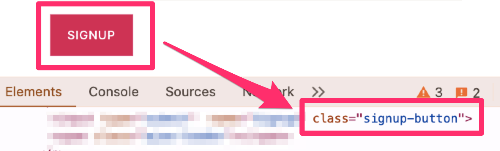
Then, you would have:
- CSS selector: “.signup-button” (the period denotes a CSS class selector)
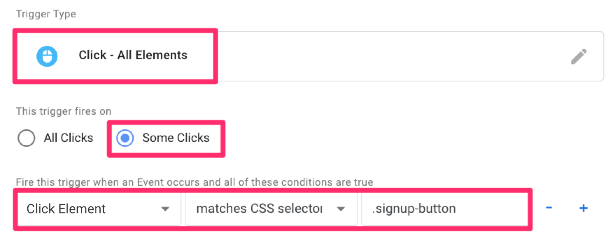
- Trigger configuration:
- Trigger Type: Click – All Elements
- This trigger fires on: Some Clicks
- Conditions: Click Element matches CSS selector “.signup-button”
Tracking clicks on all buttons except a specific one
The joy of using GTM for tracking is that you can customize things however you want. Perhaps you want to track all button clicks, but you have a button that gets a ton of clicks, and you know it will really skew your event counts. You can set a trigger that excludes that one button.
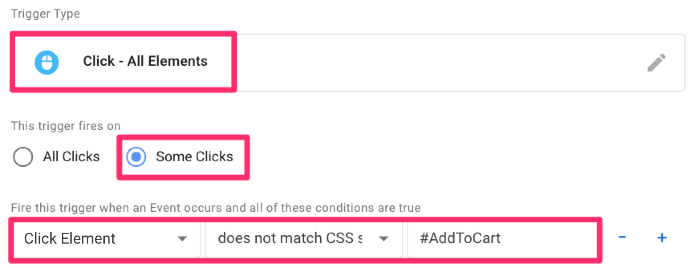
For this example, the button has an ID of AddToCart.
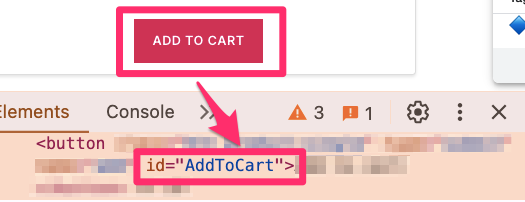
The trigger will be set up as follows:
- CSS selector: “#AddToCart” (the # denotes a CSS ID selector)
- Trigger configuration:
- Trigger Type: Click – All Elements
- This trigger fires on: Some Clicks
- Conditions: Click Element does not match CSS selector “#AddToCart”
Tracking clicks on a shared attribute
Suppose all the menu items on your site have the same attribute, e.g. “data_attribute=menu”.
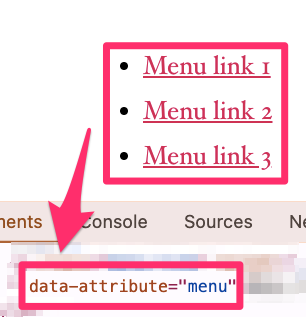
Here’s the setup for this trigger:
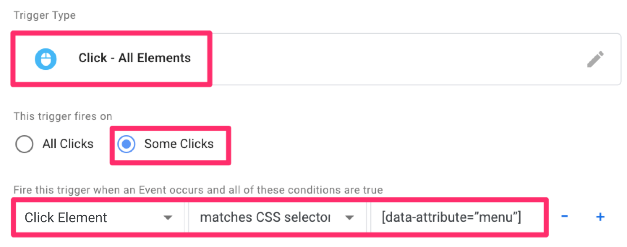
- CSS selector: [data-attribute=”menu”] (the square brackets indicate a CSS attribute selector)
- Trigger configuration:
- Trigger Type: Click – All Elements
- This trigger fires on: Some Clicks
- Conditions: Click Element matches CSS selector “[data-attribute=”menu”]”
Click element not working in Google Tag Manager: Final Words
Hopefully, this has helped you understand why your Click element trigger does not work if you use the “contains” condition. The gist is that the Click element is an object, not a string, and you need to use either the “matches CSS selector” or “does not match CSS selector” conditions.
Be sure to check out the many resources listed in the article to learn more about CSS selectors and Google Tag Manager!

0 COMMENTS