


October 7, 2026
How to check if Google Analytics 4 is working?
Updated: October 7th, 2026
After you have installed GA4, you want to be sure that you did everything correctly and that the data is being collected. In this blog post, I’ll walk you through several steps you must complete. Otherwise, you will find out (say, after a week) that you were collecting incorrect data (or no data at all!).
Without further ado, let’s check if Google Analytics 4 is working.

Video tutorial
Quick side note. If you prefer video content, I have recorded a tutorial that covers the same topic.
Note: GA4 interface has slightly changed since I recorded this video. Debugview is not located at Admin > Debugview.
#1. Check Preview And Debug Mode
This might be obvious for most GTM users, but this is where most beginners make mistakes. After you have installed GA4, click the Preview button in the top right corner.

A popup will ask you to enter the URL you want to test and debug. It might be the address of a homepage or it might be a specific page’s URL, and then press Start.

A new browser tab (or window) should appear where you will see the URL that you entered in the previous popup. At the bottom of that page/tab, you must see the following badge:

And if you go back to the tagassistant.google.com tab, you must see this success message.

If you don’t see the success message or if the preview badge shows that the debugger is not connected, read this.
Once the preview mode is enabled, click the event (on the left side) when your GA4 tag was supposed to fire. If you have set the tag to fire on All Pages, it means that you need to click Container Loaded.
Once you do that, you should see that your tag has been fired. Keep an eye on the status here:

It MUST be Succeeded. If it is Still Running, that isn’t good, and you should read this blog post for possible fixes.

#2. Check Google Analytics 4 DebugView
When you implement something in Google Analytics 4 (or any other platform), never trust your gut. Always verify that the data was received by the platform and is displayed in reports how you expect it.
In GA4, this can be done with a feature called DebugView. It allows checking the incoming data more granularly (without waiting for hours).
There are three ways to enable DebugView, and I have explained them here. But in today’s blog post, I presume you are using Google Tag Manager to install GA4. So as long as you have enabled GTM’s preview mode, you will also see your data in GA4 debugview.
You can find it by going to Admin > DebugView on the left side of the GA4 interface. Click it.

That’s the place where your debugging should take place. Do not mix this with the GTM Preview and Debug mode. They are two different beasts.
In the DebugView, your events are displayed as a feed/stream. Click on an event that interests you, and if you want, you can also check the parameters that were sent together with the event.

If you see your incoming events in the DebugView, there’s a very high chance that everything works fine. For a basic setup, look for the page_view event. Click on it. In the ‘Parameters’ tab:
- Check page_location (the full URL of the page viewed)
- Check page_title (the title of the page)
If you’re testing a custom event (e.g., a button click named cta_click), find that event in the timeline. Click on it and verify that all the custom parameters you configured are present and have the correct values. An empty DebugView or missing key parameters often indicates a problem with your GA4 tag firing or its configuration.
If you want to learn more about DebugView (or maybe it is not working as expected), read this blog post.
#2.1. Why events fire in GTM but fail to appear in DebugView
If your tags show as Succeeded in Google Tag Manager preview mode but the Google Analytics 4 DebugView remains empty, a privacy extension or strict browser setting is likely blocking the network request.
Browsers like Brave block Google Analytics trackers by default, and privacy extensions like uBlock Origin or Ghostery will stop the hit before it leaves your browser.
Because Google Tag Manager and Google Analytics operate separately, GTM can successfully fire the tag even when the browser blocks the outgoing GA4 data payload. To verify this is the issue, temporarily disable all ad blockers and privacy extensions, or run your test in a clean incognito window without extensions.
#3. Google Analytics 4 Real-time reports
When you publish your Google Analytics 4 tags in Google Tag Manager, it’s a good practice to check whether data (of your visitors) starts to come in. To do that, go to Reports > Realtime (on the left sidebar).
First, you will see a map and a bunch of cards with traffic sources, the most popular events, and the number of users in the last 30 and 5 minutes. You can also take a look at the snapshot of an individual user. You can do that by clicking the View user snapshot button in the top right corner.

Then, you will see a stream of all events of that particular user. You can click on them (just like in the DebugView) to see things on a more granular level. If you wish to look at another user/visitor, you can click the button here:

To exit the snapshot, press the Exit snapshot button in the top right corner.
What’s important here is that you must see some data in real-time. If you expect to have some traffic but you see 0 users in real-time reports, something is misconfigured.
If you followed a certain tutorial, re-read it again. Or, if you need more support from me, you can enroll in my GTM online courses. I always help my students with struggles like this one.
#3.1. Is an internal traffic filter blocking your test data?
If you expect to see your own test traffic in Realtime reports but the user count stays at zero, your Google Analytics 4 property might have an active internal traffic filter excluding your IP address.
To check if a filter is hiding your test data, go to Admin > Data Settings > Data Filters. If your Internal Traffic filter is set to Active, GA4 drops all hits originating from your IP address, preventing them from appearing in Realtime and standard reports.
While testing, you can either temporarily change the filter state to Testing or use a mobile hotspot to connect with a different IP address and verify your data is flowing.
#3.2. Double-check your GA4 Measurement ID if Realtime is empty
If your tags show as fired in Google Tag Manager but you see exactly zero users in your Realtime reports, you might be sending data to the wrong Google Analytics 4 property.
This is a common mistake when managing multiple website environments or when copying tracking setups between accounts. To verify, go to your GA4 property, navigate to Admin > Data streams, and copy your Measurement ID (it starts with G-). Compare this exactly to the ID entered in your Google Tag inside Google Tag Manager. If the IDs do not match, your data is flowing into a completely different account, and your current property will remain empty.
#4. Browser developer tools
This tip is more technical compared to the previous ones. You can check the developer tools of your browser and check all the outgoing requests sent to Google Analytics 4.
Since my browser of choice is Google Chrome, I will be using it to show the example.
In the top-right corner, click 3 dots, then More tools > Developer Tools.

Then select Network.
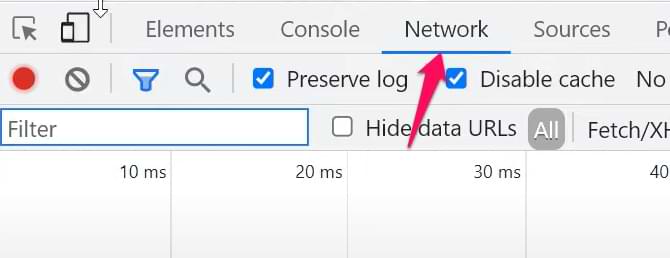
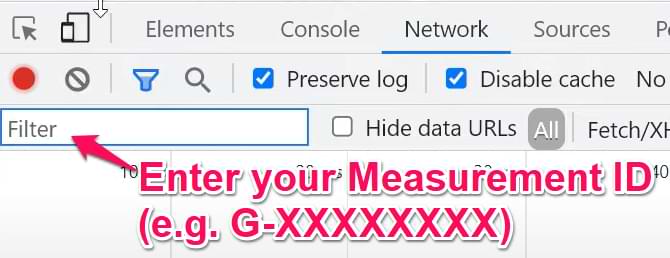
In the search field, enter your measurement ID (because all requests sent to Google Analytics 4 are sent to URLs that contain your Measurement ID). It looks like this: G-XXXXXXXX. Obviously, you should replace XXXXXXX with your actual ID.
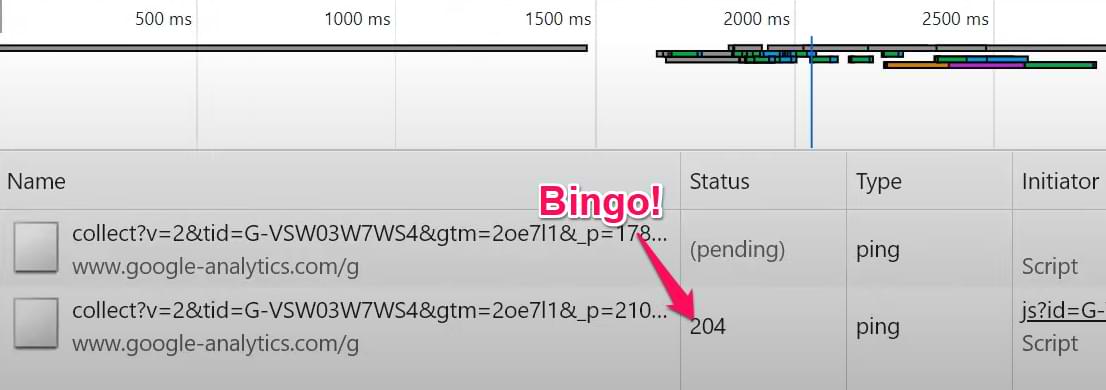
Check the status of those requests. If it is 204, then things are looking good. You can ignore requests with “(pending)” status.
Bonus: while you’re in the developer tools, check the Console tab as well. Maybe you will find some errors related to “Google Analytics”, “gtag”, or something similar. If yes, then consult with your developer whether that error is critical or not.
#4.1. Checking GA4 requests with Google Consent Mode v2
If your website uses a cookie consent banner configured with Google Consent Mode v2, your verification results depend on the visitor’s choice. When a visitor denies analytics tracking, GA4 (in Advanced Consent Mode) sends cookieless pings instead of standard events.
To verify this is working correctly, click the collect request in your Network tab, scroll down to the Payload section, and look for the gcs parameter. If you see gcs=G100, it means analytics consent was denied and GA4 is successfully sending a cookieless ping.
Because these pings lack cookie identifiers, they will not populate in your standard Realtime reports or DebugView. To test standard GA4 tracking accurately, accept all cookies on your banner to grant analytics_storage permission, which changes the parameter to gcs=G111 or gcs=101.
#5. Check reports
Important: The data can take up to 48 hours to appear in standard reports.
Even though I have already mentioned several other verification methods, it is necessary to check the final destination of your data, which is standard GA4 reports. This includes the Reports and Explore sections on the left sidebar.
There is a variety of different reports in GA4, and I will not dive deeper in this blog post, but here are several articles that might help:
#6. Verify cross-domain tracking setup
If your business operates across multiple domains and wants to track them in a single GA4 property, you must configure cross-domain tracking. Your main goal here is to ensure that when a visitor navigates from domain A to domain B (of the same business), the value of the _ga cookie stays the same.
The fastest way to test if your cross-domain configuration is working is to check the destination URL for the _gl linker parameter.
Click a link on your main domain (for example, Domain A) that leads to your secondary domain (Domain B). When Domain B loads, look at the URL in your browser’s address bar. It should contain a long string appended to the end starting with ?_gl=. If this parameter is missing, your cross-domain configuration in the Google Analytics 4 admin settings is incomplete, and the _ga cookie is not being passed.
Watch this tutorial (starting at 6:43) to learn how to do that.
If you want to learn more about cross-domain tracking setup in general, read this blog post.
Check if Google Analytics 4 is working: Final Words
Hopefully, this quick checklist of how to check if Google Analytics 4 is working helped you. You need to check various parts of the flow:
- Is the GA4 tag fired?
- Is the request properly sent to Google Analytics 4? Because even if the tag fires in GTM Preview mode, that does not mean the request was sent properly.
- Can you see the incoming data in DebugView?
- Can you see the data in reports?
7 COMMENTS
For the Dev Console > Network tab > why would the response be as 204 and not 200?
Because 204 is still a success. GA4 is coded in a way to use 204 status https://httpstatuses.com/204
What if GA4 is installed via Google Tag Manager. Can it be verified in some way without access to Google Analytics and Google Tag Manager?
You can still check requests in the browser's developer tools > Network tab
Is there any way to see from the source code whether a website has GA4 installed (even if it isn't your site)?
I'd like to use this approach to prospect for new SEO clients.
I can help clients update their analytics and start a conversation about SEO benefits etc.
I know we can check for UA-xxxx in the source, but it seems like GA4 doesn't have any defining source code characteristics.
Can you advise?
GA4 has almost the same characteristics - G-XXXXXXX
Your article is very helpful. I recently installed GA4 only to discover that I had to use Google Tag Manager also. The entire experience is like walking through a maze. I'm still not sure if I've set GÀ4 up correctly. I'll try to use your report to see if things are all good.