

August 6, 2026
What is Google Data Manager?
For years, if you wanted to send your data into Google Ads, you had a bunch of ways to do it. Customer Match over here, offline conversion import over there, enhanced conversions somewhere else again. Each one with its own setup, its own format, and its own little headaches.
And what happened in practice? Most businesses looked at all of that and just… didn’t bother. Best case, they had enhanced conversions running, and that was it. The CRM data, the backend data, the profit data, all of that remained unused.
Google’s answer to that mess is called Google Data Manager. In a nutshell, Google Data Manager is Google’s central hub for your first-party data. It’s where you connect your data sources (your CRM, your ecommerce backend, your offline conversions, your customer lists) and from there, the data flows into Google Ads and several other Google products.
Still not clear? Then continue reading. In this blog post, I will explain what Google Data Manager is, why Google wants more of your first-party data, and whether it replaces server-side Google Tag Manager.
Table of Contents
Here’s what you will learn in this article
- What Google Data Manager is (and what it’s not)?
- Why did Google build this?
- The interface: connect your data without code
- The Data Manager API: the flexible version
- Google Data Manager vs server-side Google Tag Manager
- Where Data Manager fits in your stack
- What’s next?
- Final words
Video tutorial
If you prefer video content, watch this tutorial from my YouTube channel.
What Google Data Manager is (and what it’s not)?
Let’s clear up the first misconception. When people hear “Google Data Manager”, many of them assume it’s just a rename. Like Google took the old data section inside Google Ads, slapped a new label on it, moved a few buttons around, and called it a day.
Well, at the beginning, it kind of was. But it’s more than that now.
Here’s how I would describe it: Google Data Manager is Google’s solution to become a central place for all the first-party data you send them. You connect your data sources once (a CRM, an ecommerce platform, a database, a customer list) and Data Manager takes care of delivering that data to Google Ads and other Google destinations.
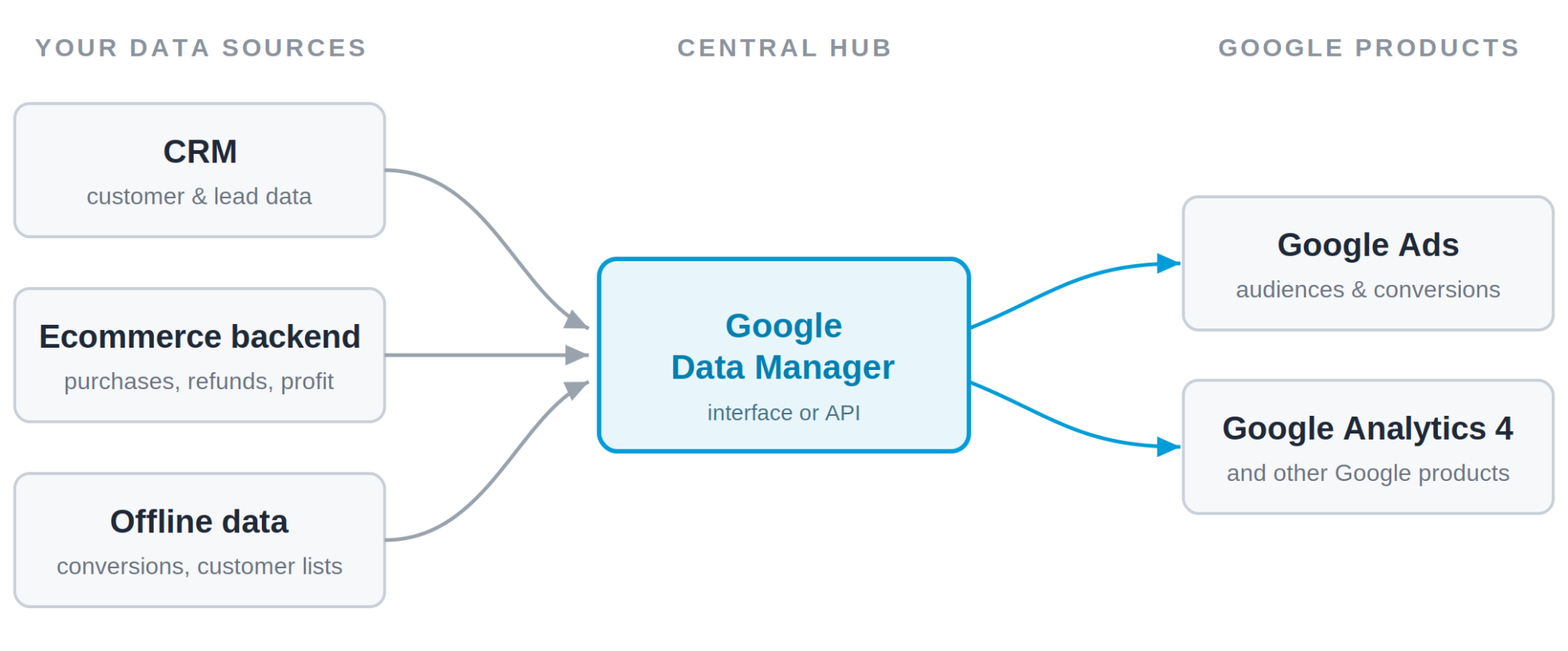
There are mainly two ways how you can use it:
- The interface. A point-and-click setup inside your Google account. No coding required.
- The API. The version you use when you want to connect your own systems to Data Manager with code.
We’ll go through both in this post. But before we do, let’s cover the bigger question, the one that actually matters. Why did Google build this in the first place?
Why did Google build this?
Okay, let’s take a step back. Two things have been happening at the same time.
First, the browser has stopped being a reliable place to collect data. Third-party cookies dying, ad blockers, iOS restrictions, you name it. A lot of the conversions and events that used to flow straight into Google are now leaking. Google simply sees less than it used to.
Second, Google moved almost everything to automated bidding. Smart Bidding, Performance Max, all of that. These systems run on AI and the data you feed them. The more signals (and the better their quality), the better they target your potential customers. Feed them weak data, and they guess.
So Google has a very direct reason to want more and richer data going in. And here’s the thing: the only reliable data left is your own first-party data. Your customer list, your offline sales, the enriched data from your backend. That’s the “data strength” thing Google keeps talking about in its documentation and conference keynotes.
But collecting and sending that data was never simple. There were multiple ways of doing it, and things could get messy fast if you didn’t have enough technical knowledge. That’s why so many businesses sit on valuable first-party data and never use it.
Google Data Manager is Google’s attempt to lower that technical barrier. One place for your data, fewer moving parts, and for simple use cases, you don’t need to write a single line of code.
The reason why Google is doing this is pretty obvious. The easier the data collection process, the more data Google gets, and the better their ads perform.
Better ad performance means businesses will likely spend more money on ads. Google is not doing charity here, but in this case, the incentives happen to align with yours.
Google even shared (during Google Marketing Live 2026) that advertisers feeding first-party data through Data Manager saw an average incremental ROAS increase of around 11%. Of course, always take these numbers with a grain of salt.
The interface: connect your data without code
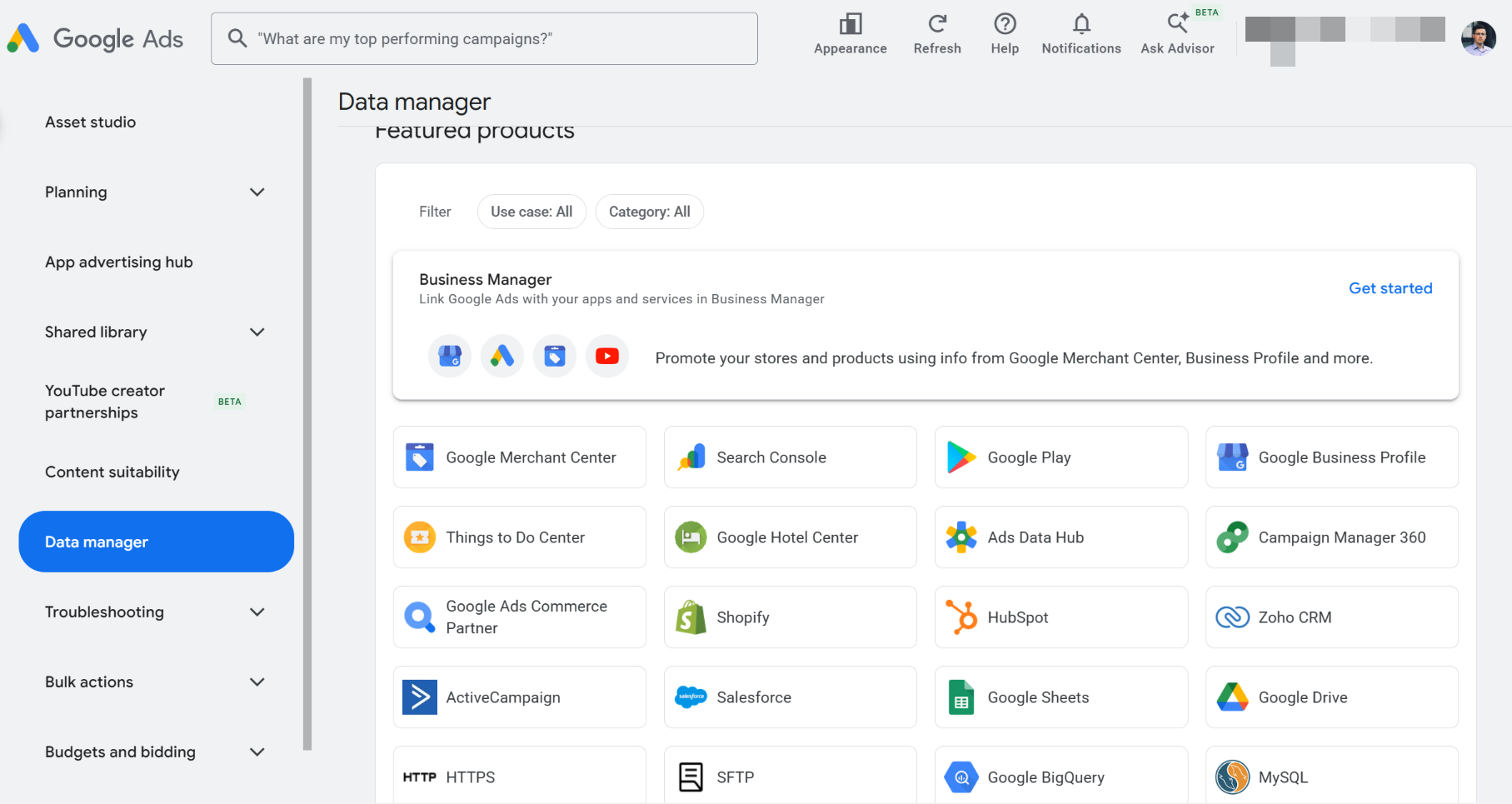
This is the part where marketers will probably spend most of their time. The whole idea of the Data Manager interface is that you can connect a data source without writing any code.
You’ll find Data Manager in your Google Ads account (under the Tools menu).
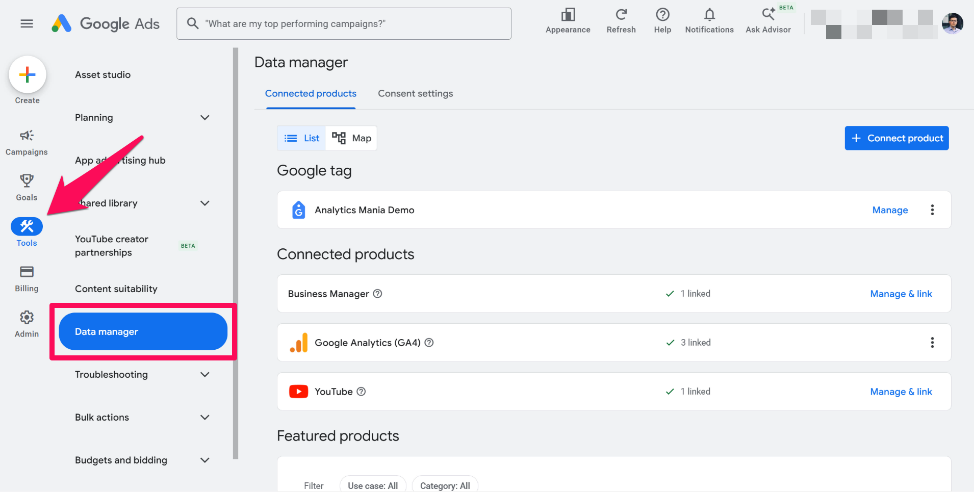
The workflow looks like this:
#1. Connect a data source. This could be a customer list you upload, or a direct connection to a platform like HubSpot, Salesforce, or BigQuery. Google is actively adding new connectors, so there’s a good chance the platform you’re using is already supported (or will be soon).
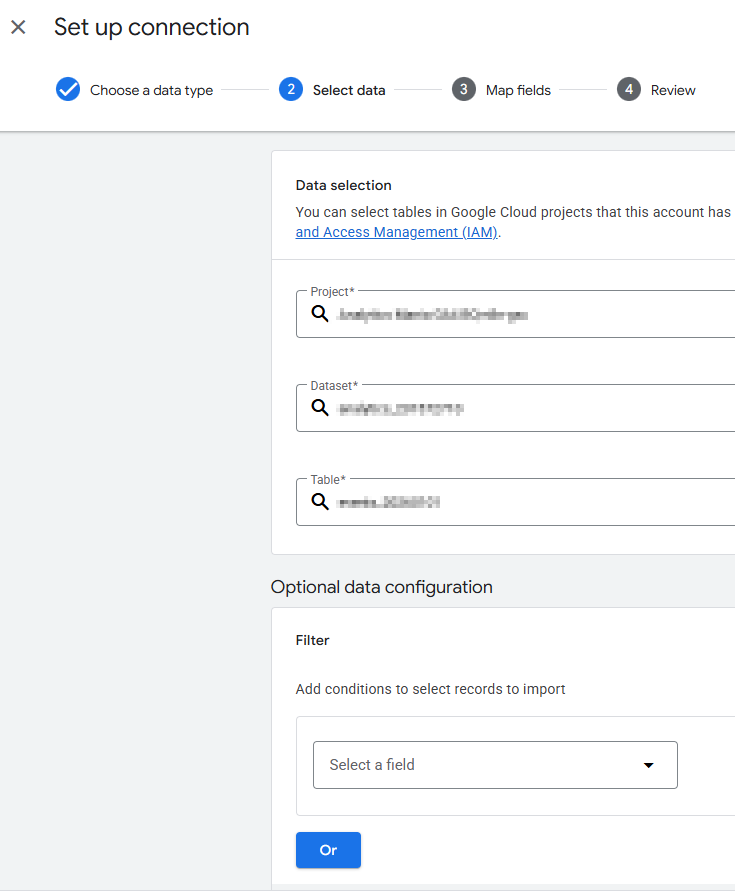
#2. Map the fields. You tell Google which column contains the email, which one contains the phone number, and so on. This is the same idea as field mapping in any other tool. Email here, phone there. But keep in mind that the setup wizard here will differ depending on the vendor/platform that you’re trying to connect.
#3. Choose where the data should go. In other words, pick the destination and the use case: Customer Match, enhanced conversions for leads, offline conversion import, or store sales.
That’s it. No developers involved.
One practical tip here. If multiple sources are sending the same purchase data (for example, your website and your CRM), make sure that transaction IDs are consistent across data sources. Google will then deduplicate those conversions instead of counting them twice.

The Data Manager API: the flexible version
But let’s say you want more. More control, more automation, a proper programmatic setup. Or maybe you’re working with a custom platform that the Data Manager interface doesn’t support. That’s where the Google Data Manager API comes in.
The API launched in December 2025. And instead of juggling a bunch of different tools and endpoints to get your data into Google, there’s now one single connection to send it all through.
Here’s a detail that shows how seriously Google takes this: Google stopped developing the Google Analytics Measurement Protocol.
If you’re not familiar with it, the Measurement Protocol is a way to send data from your server straight to Google Analytics. It’s in maintenance mode now, and Google’s documentation points you to the Data Manager API instead.
You can think of it like this: the interface is the quick win, and the API is what you reach for when you want flexibility, automation, and something that scales. Same destination, different level of control.
And I’ll be honest with you here. The API side is developer territory. If you or your team can’t write (or at least read) a bit of code, or you’re not running a server-side setup, the interface is where you’ll live. That’s completely fine.
But if you want the enriched, automated, profit-signal version of first-party data, the API is where the real power is.
Google Data Manager vs server-side Google Tag Manager
Now, here’s the question I keep getting: “If Data Manager can take data from my backend and send it to Google Ads on the server level, do I even need server-side Google Tag Manager anymore?”
It’s a fair question. No browser is involved in either case. So is this the end of server-side GTM?
The honest answer isn’t a simple yes or no. It’s the usual “it depends”. Let me explain.
What each one actually does
Server-side Google Tag Manager is your own server. It sits between your data sources (usually your website) and the tools you send that data to.
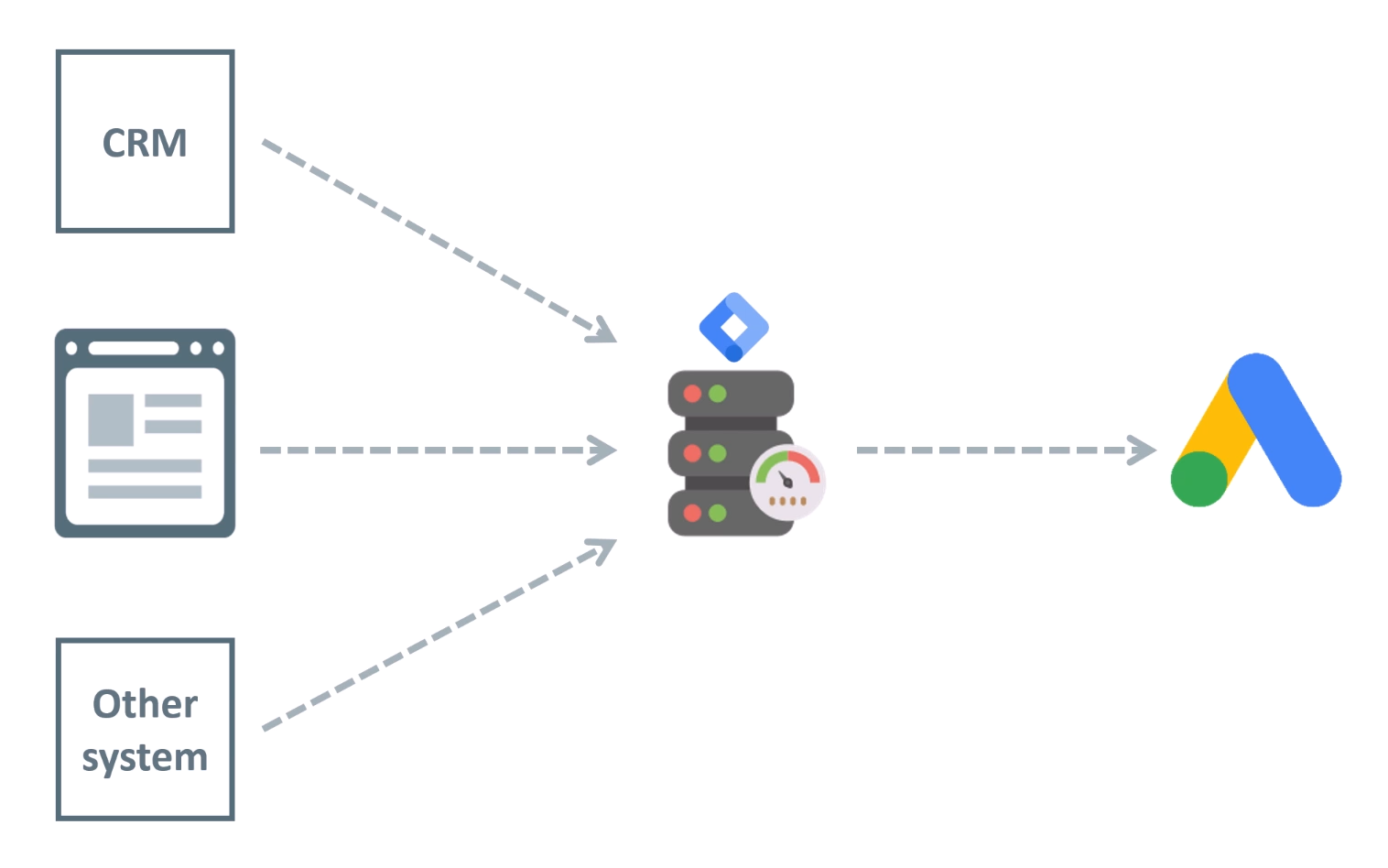
When server-side GTM catches your events, it lets you clean them, change them, enrich them, and then it forwards them wherever you want. Google Ads, GA4, Facebook, your own database. The key factor here is control and flexibility.
Google Data Manager is narrower. It’s a connection point. You point your data sources at it, and it hands the data over to Google. That’s the job: get your first-party data into Google.
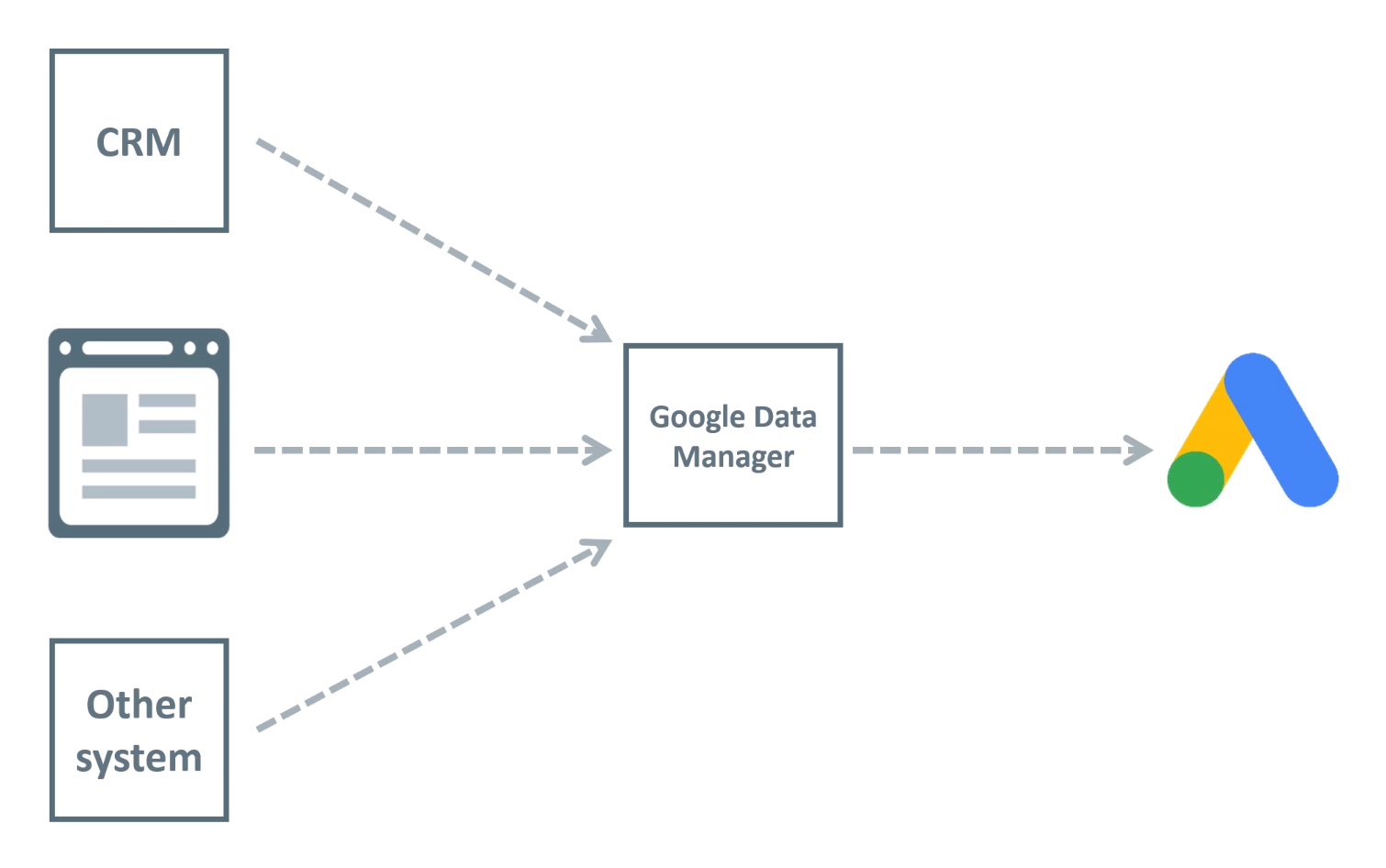
There are some controls (for example, in the BigQuery connection you can add filters), but you cannot easily modify the data, and you cannot enrich conversions directly in Data Manager.
So you can already feel the difference. One is a processing layer that you control. The other is a way to hand your data to Google.
| Server-side GTM | Google Data Manager | |
| Collects web events from your site (browser-side) | Yes | No |
| Modifies / enriches data | Yes (full control) | Very limited |
| Destinations | Google + many other platforms | Google products only |
| Coding / infrastructure needed | Yes (server, container setup) | No (interface) / Yes (API) |
| Consent & first-party cookie control | Yes | No |
Where the overlap actually is
Here’s where the confusion comes from. Let’s say the only thing you ever used server-side GTM for was sending offline conversions to Google Ads. Or pushing a customer list. A lot of people spun up a whole server-side container just for that. Nothing fancy, no real enrichment, just “get this data from my backend into Google Ads”.
If that’s you, then yes, Data Manager can now do that on its own. You connect your source, you send the data, done. You didn’t really need the full server-side setup for it.

Where server-side GTM still wins
But that’s the simple case. Here’s where server-side GTM still wins, and it’s not even close.
#1. Collecting web events. Data Manager doesn’t sit on your website catching what people do. Server-side GTM does. If you want to capture a purchase, a form submission, or a page view on the server, that’s Google Tag Manager’s job.
And the browser side matters more than people think. When someone lands on your website after clicking an ad, the URL contains a Google click ID. That click ID is what Google uses to tie the conversion back to the ad. If you skip the website completely and only import sales from your backend, fewer of your conversions get attributed.
#2. Enrichment. This is the big one. In server-side GTM, you can take an event and add data to it: your profit margin, user data, information pulled from your backend, whatever makes the signal more valuable. Data Manager isn’t built for that kind of custom logic (by the way if you want to learn more about enrichment, take a look at my First-party data masterclass).
#3. Other destinations. Server-side GTM sends data to lots of places. Data Manager sends data to Google. If you care about other platforms (or your own database), that’s GTM doing the work.
#4. Control and ownership. Consent handling, extending the lifetime of first-party cookies, how the data is shaped before it leaves your server. All of that lives in server-side GTM. For most serious setups, this matters.
The verdict
Is Google Data Manager the end of server-side GTM? No. Different tools for different tasks. In a lot of good setups, they work together: you collect and enrich your data in server-side GTM, and then one of the places you send it to is… Google Data Manager.
So it’s often not GTM or Data Manager. It’s GTM and Data Manager.
Where Data Manager fits in your stack
Let’s put the whole picture together.
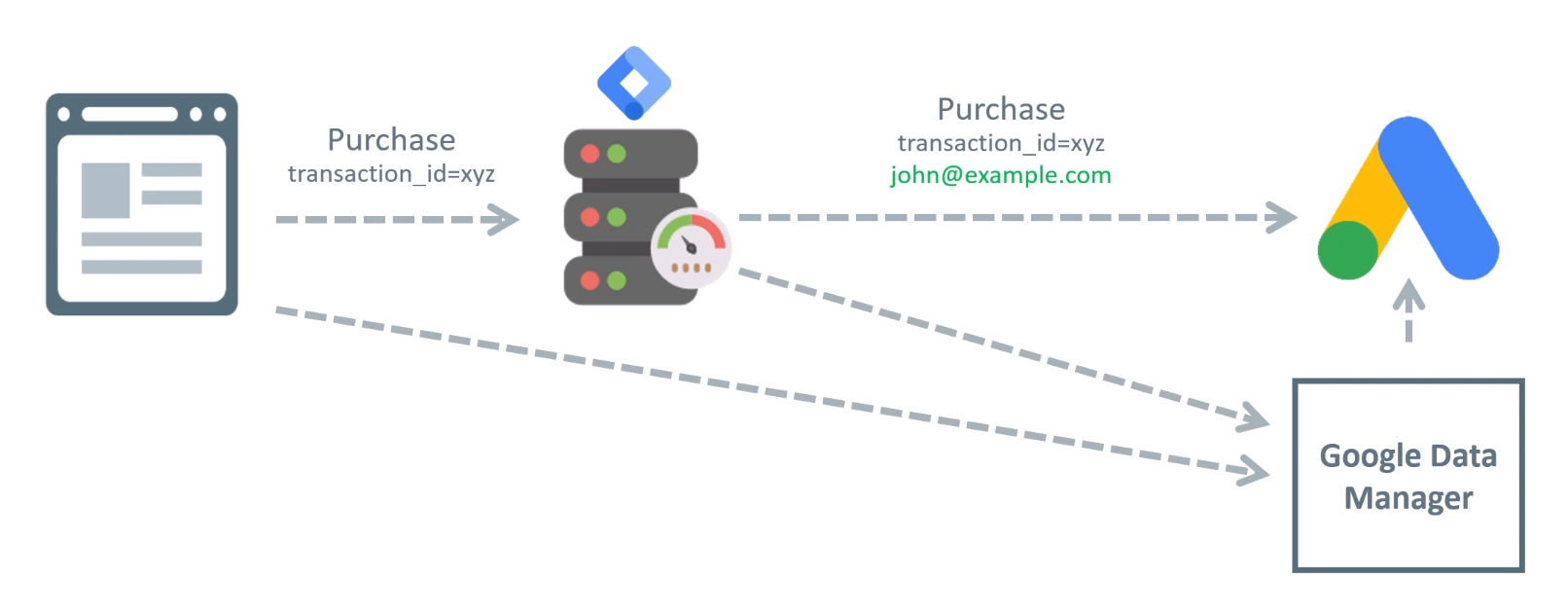
You have two valid paths:
- Directly from your systems. Your CRM or backend sends data straight to Data Manager (via the interface connectors or the API). Simple, fast, no extra infrastructure.
- Through server-side GTM first. Your events are collected and enriched on your own server, and then forwarded to Google, with Data Manager being one of the destinations.
By the way, if you want to send offline conversions to Google, Data Manager is now the recommended way to do that.
What’s next?
If this made you more curious, here’s where I would start:
- First, check what first-party data you already have sitting unused. Most businesses have more than they think. A customer list at the very least, plus offline sales, lead outcomes from the CRM, refund data, profit margins.
- Second, if you’re not technical, open the Data Manager interface and see which sources are available and what you can connect right now, without code. Google is investing a lot in new connections, so the platform you’re using might already be supported.
- Third, if you are technical (or have developers on the team), look at the Data Manager API, especially if you’re still using the Google Analytics Measurement Protocol. It’s in maintenance mode, and the Data Manager API is its successor.
What is Google Data Manager: Final words
I hope this blog post made the whole Google Data Manager thing less mysterious. Let’s quickly recap:
- Google Data Manager is Google’s attempt to become one central place for your first-party data. Connect your CRM, backend, and customer lists once, and the data flows to Google Ads and other Google products.
- There’s an interface (point-and-click, no code) and an API (flexible, automated, programmatic).
- It does not replace server-side Google Tag Manager. In many cases, Data Manager is a destination; server-side GTM is a processing layer you control. In many setups, they work together.
- The reason behind all of this is simple: browsers leak data, Google’s AI bidding needs quality signals, and your first-party data is the most reliable source left.
If you want to go deeper (how to enrich your conversions with first-party data, how to sync your CRM with Google Ads, how to send data using the Data Manager API), take a look at my First-party Data Masterclass.

0 COMMENTS