


November 26, 2025
Microsoft Ads conversion tracking with Google Tag Manager (Bing Ads)
Updated: November 26th, 2025
Microsoft ads (a.k.a. Bing Ads) are Microsoft’s equivalent to Google Ads, allowing you to run promo campaigns, promote your business, and drive traffic to your site. But if you want to benefit from it, you must track conversions. Or else, how will you know which ads/campaigns/keywords perform better?
Even though I mainly focus on Google Analytics implementations here at Analytics Mania, in today’s blog post, I’ll explain how to implement Microsoft Ads Conversion Tracking (by using Microsoft Advertising Universal Event Tracking).
Note: I might use the terms Bing Ads and Microsoft Ads interchangeably in this blog post.

Table of Contents
Here’s what you will learn in this article
- What is a conversion in general?
- Action plan
- Install the Microsoft UET tag with Google Tag Manager
- Don’t forget the consent
- Conversion based on the Destination URL
- Purchase tracking with Bing Ads and Google Tag Manager
- Enhanced Conversions in Microsoft Ads
- Where can you see the conversion data in Microsoft Ads?
- Microsoft Consent Mode
- Microsoft Ads conversion tracking: Final words
Video Tutorial
If you prefer video format, here is a tutorial from my Youtube Channel.
What is a conversion in general?
Some of my readers who land on this page might be completely new to conversions. If you are one of them, here’s a quick introduction. And if you already know what conversions are, feel free to skip to the next chapter of this blog post.
A conversion is an important interaction you want your visitors/users to complete. Conversions can be split into micro and macro conversions. An example of a micro-conversion can be a newsletter subscription, a whitepaper download, etc.
Micro conversions are usually defined as actions that move your visitors/users one step closer to the main (macro) conversion.
Macro-conversions are the most important interactions, such as a purchase.
By tracking conversions, you can better understand what is working for your business and what isn’t. For example, you can create a segment of your users who have made a purchase and then try to understand what they are doing, what their behavior is, etc. Also, conversions are used to measure the effectiveness of advertising campaigns and then redistribute your advertising budget.
Hopefully, this super-brief introduction gave you a better understanding of this concept.
Now, let’s learn how to track conversions with Microsoft Ads and Google Tag Manager.
Action plan
To implement Bing Ads conversion tracking, you will need to complete the following steps:
- Install the Microsoft UET tag with Google Tag Manager
- Send additional events to Microsoft Ads
- Implement enhanced conversions
- Configure/verify consent mode

Install the Microsoft UET tag with Google Tag Manager
In this blog post, I presume you have already created a Microsoft Ads account. If you haven’t, go do that here. Sign up and follow all the steps that you will be asked to.
Get the UET tag ID
When you log in, go to Conversions > UET tag. UET stands for Universal Event Tracking.
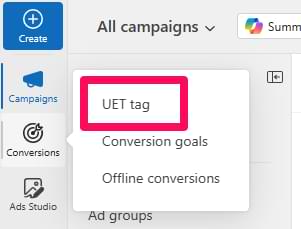
If the Microsoft Ads interface has changed and it looks different from what you see in this article, use the search feature in the Microsoft Ads interface and enter “UET tag”.
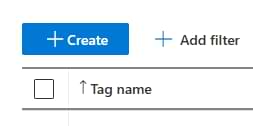
Then click Create.
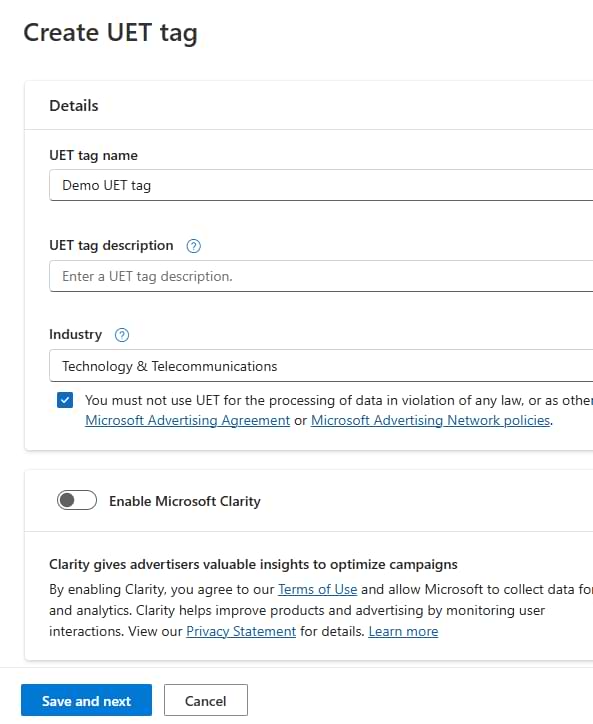
After that, you will be asked to enter the tag’s name and a description. In general, it’s enough to enter the name. It can be something like the name of your company or maybe the name of the website (where this tag will be implemented).
Also, select your industry and click the checkbox below that field. Do not enable Microsoft Clarity.
Click Save.
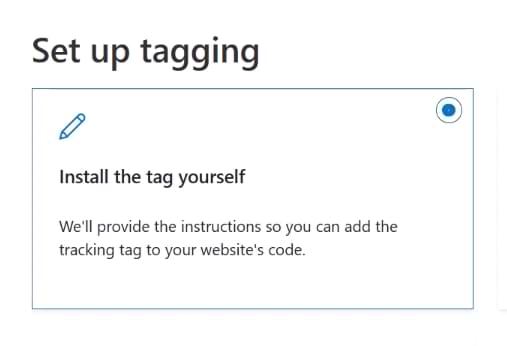
Then select to install the tag yourself. Click Next.
After this step, you will be prompted to enable consent mode. For now, let’s keep this disabled. I will share some details about the consent mode later in this article.
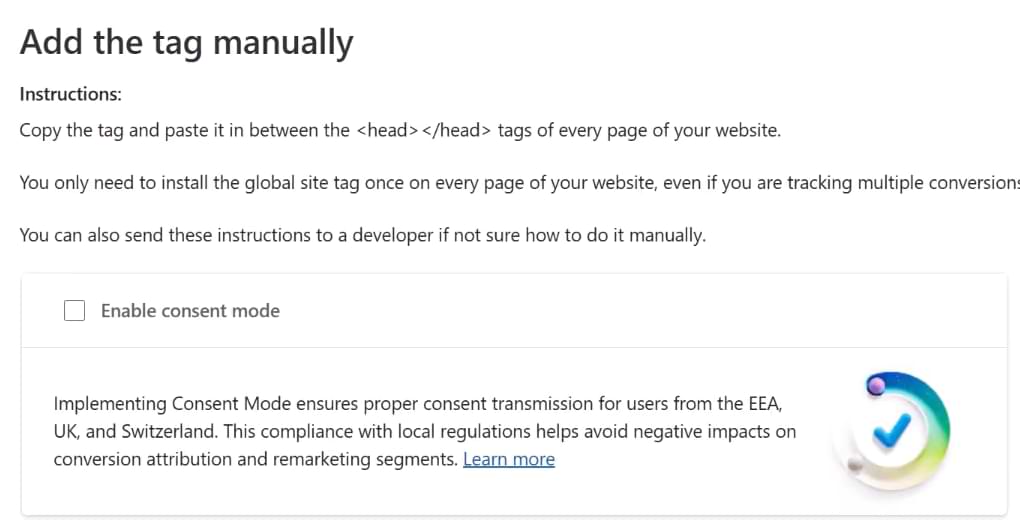
Click Next. And that’s it! You have now created a UET tag.
Once that is done, click your UET tag in the list of all tags (within the Microsoft Ads manager’s interface). And then at the top of the screen, you’ll see the Tag ID. Copy it.
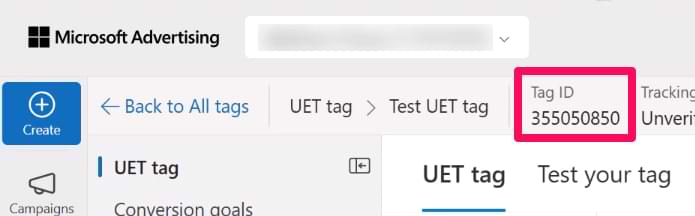
Create a Microsoft Advertising UET tag in Google Tag Manager
In this article, I assume that you have already installed Google Tag Manager on a website. If not, read this article first and then come back here.
Now let’s go to Google Tag Manager > Tags > New > Microsoft Advertising Universal Event Tracking. It might be challenging to find it in the list, so I recommend using the Search feature.

For your information: if you have read some older Bing Ads tutorials, they told you to look for the “Bing Ads Universal Event Tracking” tag. That name was eventually changed to “Microsoft Advertising Universal Event Tracking”.
In the tag, paste the ID you copied from the Microsoft Ads interface. Leave Track type as a Page view. Click anywhere on the “Triggering” section and select the Initialization – All pages trigger. Then name the tag whatever you want, e.g., Bing Ads – Page view. Save the tag.
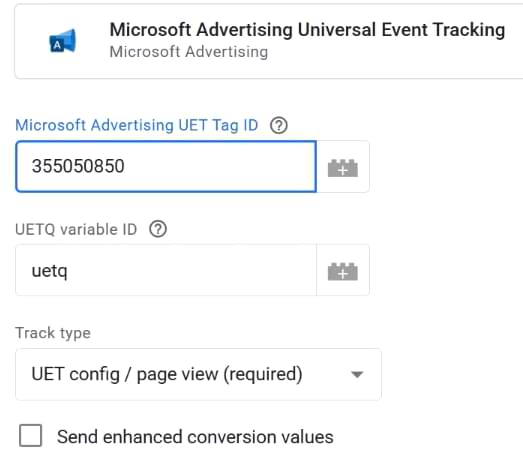
P.S. I will explain how to handle enhanced conversions later in this article. For now, I left the checkbox unchecked.
Let’s test
To enable Google Tag Manager Debug mode, click the Preview button in the top right corner of your GTM interface (near the Submit button).

Once you click the Preview button, a new browser tab will open with tagassistant.google.com. If it does not, read this guide.
A pop-up will ask you to enter the URL you want to test and debug. It might be the address of a homepage, or it might be a specific page’s URL. Then press Start.

A new browser tab (or window) should appear, where you will see the URL you entered in the previous pop-up. At the bottom of that page/tab, you must see the following badge:

And if you go back to the tagassistant.google.com tab, you must see this success message.

If you don’t see the success message or if the preview badge shows that the debugger is not connected, read this.
Click Continue in the preview mode and then click on the Initialization event (on the left sidebar). Check if your Bing Ads tag has fired. If yes, that’s good.
Additionally, you could install a Chrome Extension UET Tag Helper. When you do that, click its icon and then toggle the switch.

Refresh the website where you want to test the tag (NOT the preview mode). Now you should see a number in the extension’s icon. Click it to see what kind of events were noticed by the helper.
If everything works fine, you should see the Page Load event (p.s. page load = page view). You can also click “Parameter details” to expand and view more information about the data sent to Microsoft Ads.
All good? You can now publish your Google Tag Manager container changes, and this tag will go live for all your website visitors. You can publish the container by clicking the Submit button in the top-right corner of the GTM interface, then selecting PUBLISH.

Don’t forget the consent
I used the Initialization – All Pages trigger in the previous example for simplicity. In reality, the setup is much more complex because you should fire tags like this one only if a visitor gives consent for tracking. To do that, you will need to:
- Have a cookie consent pop-up on your website
- Then configure GTM to listen to user interactions with that pop-up
- And then fire tags only if a visitor gives consent (or fire it prior to consent if you’re using Consent Mode).
This topic is not an easy one. You can get more familiar with all the intricacies of consent management in my Google Tag Manager Masterclass for Beginners.
Conversion based on the Destination URL
With this basic setup (when you just have one Microsoft UET tag that fires on all pages), you can already start tracking conversions. If you can distinguish (by looking at the page URL) that a visitor completed some important action, you can tell MS ads that this is a conversion.
A good example of this could be signup. If a visitor is redirected to a unique Thank you page, that pageview can be your conversion.
In the Microsoft Ads interface, click Conversions > Conversion goals.
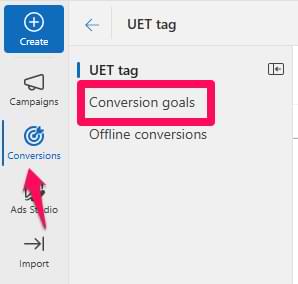
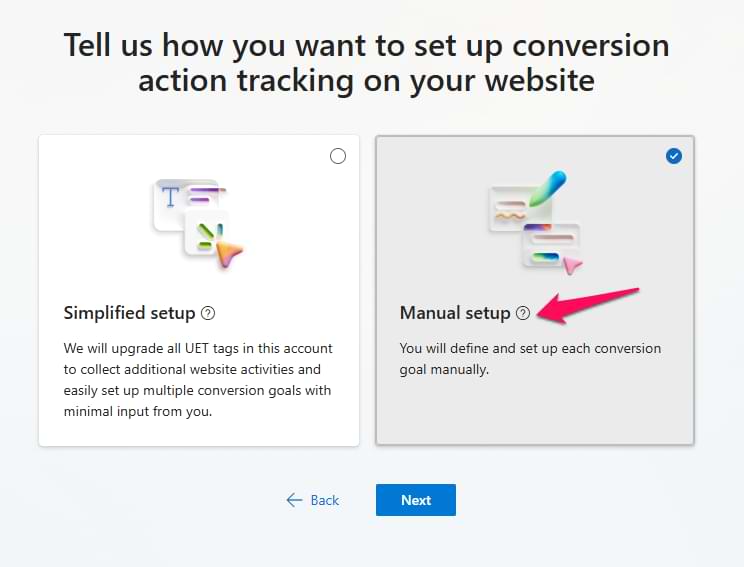
Click Create > Business website. Select Manual setup.
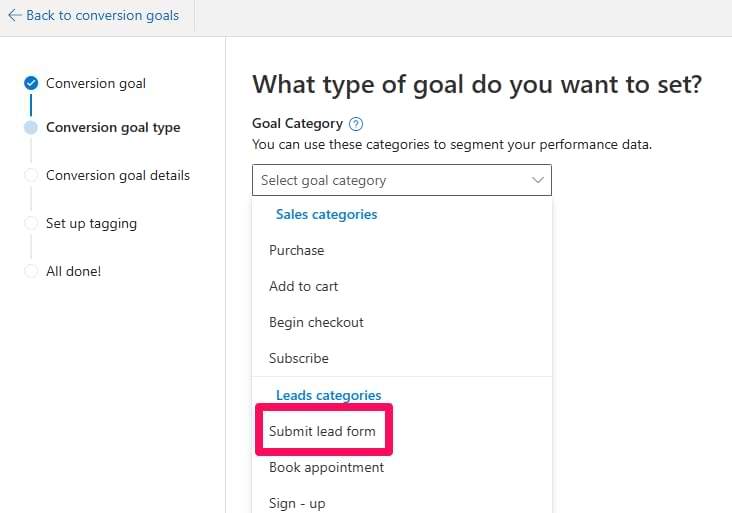
After that, select a goal category. If your conversion is a newsletter signup, select “Submit lead form” (or something similar).
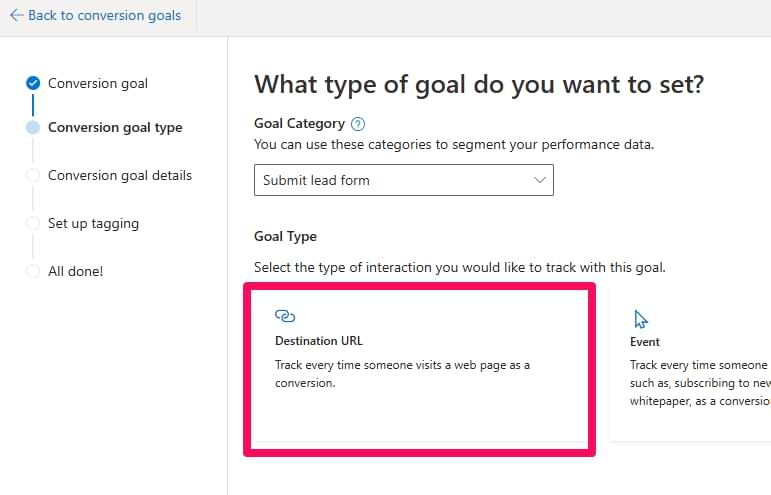
Click Next. Then select the goal type. In this chapter, I’ll show you the “Destination URL”. Later, we will be using “Event”. So, select the “Destination URL”. Click “Next”.
Enter the name of the goal, its destination URL, and revenue. Of course, change the destination URL to something that matches your situation.
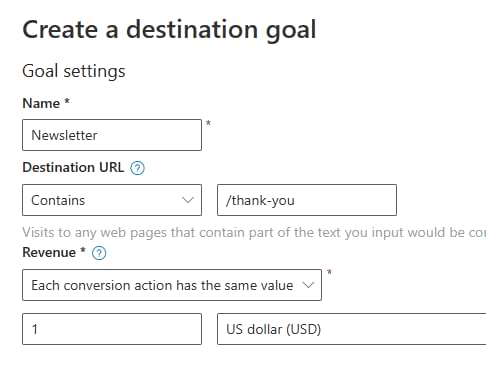
In this case, I selected “Each revenue action has the same value”, but if you don’t want to assign the value, you can do that as well.
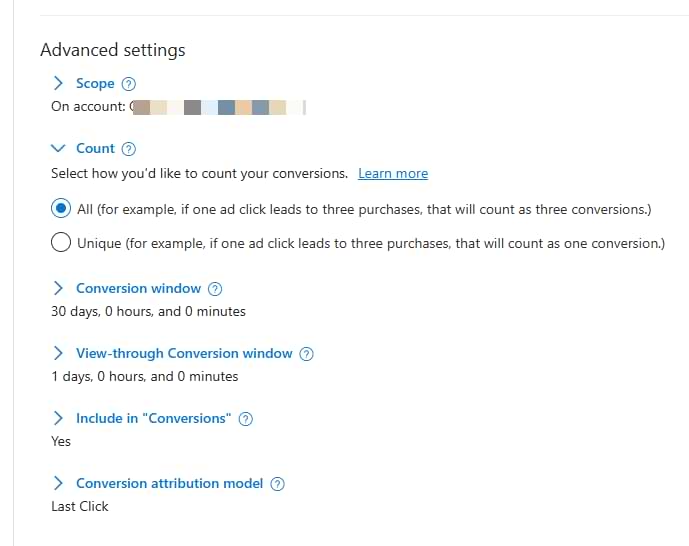
In the “Advanced settings”, I changed the count to “unique” because I don’t care how many times the same person subscribes to a newsletter. But if my conversion was related to purchases, then I would count All.
Click Next.
In the next step, I disabled enhanced conversions (because using them would require additional modifications in the website’s code. My goal in this chapter is to show the basic no-code setup).
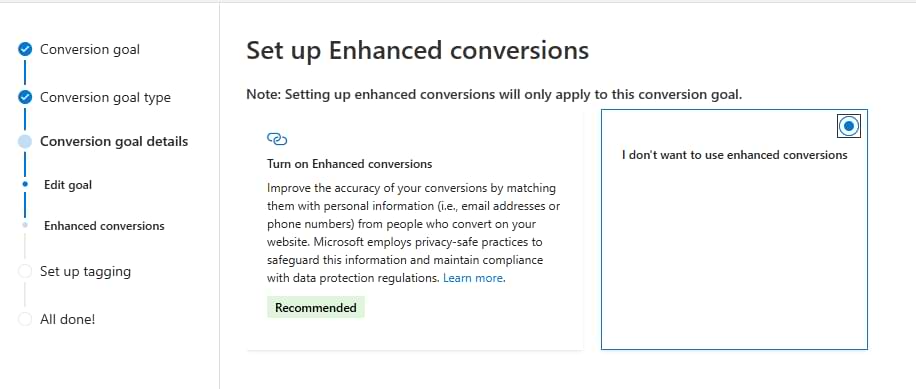
But don’t worry, we’ll use this option later in this article (when we’ll be dealing with “Event” goals). Click “Save and next”.
Finally, you will be asked if your UET tag is installed. Select the “Yes” option.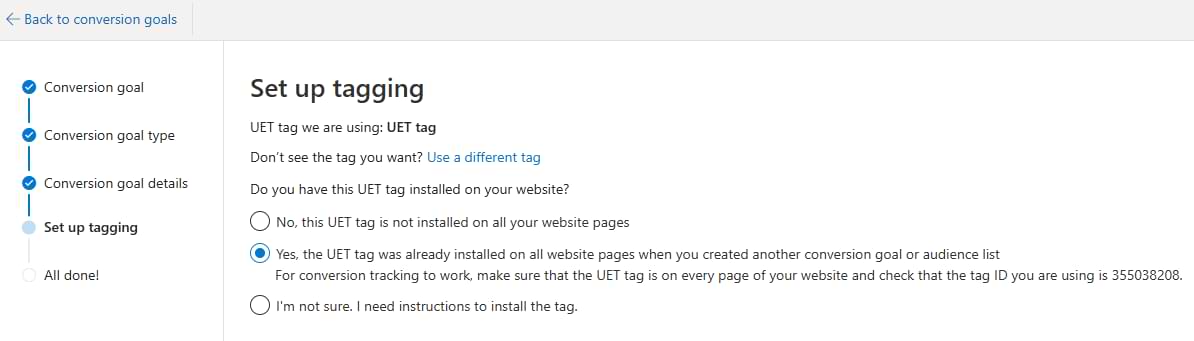
And that’s it! Your basic conversion (based on destination URL) is now live. If you are running ads, someone converts and then goes to your “Thank you” page, that will be counted as a conversion.
But what if your conversion is more complex? What if it’s a purchase, and the URL of the “thank you” page is not unique enough? Enter event tracking.
Purchase tracking with Bing Ads and Google Tag Manager
In this chapter, we will take a look at how to send a purchase event to Microsoft Ads, and together with it, we will pass additional parameters (revenue and currency).
When it comes to purchase tracking, the most robust way is to ask a developer to push the purchase data to the Data Layer on a Thank you page. Or maybe you are working with a popular e-commerce platform (e.g., WordPress) that offers a GTM plugin to push the data?
Purchase data in the Data Layer
Anyway, in this example, I presume that you have a Google Analytics 4 e-commerce data layer on your “thank you” page. If you have no idea what it is, I teach how to work with it in my GTM Masterclass for beginners.
Here’s a sample dataLayer.push that your developer could implement on the order confirmation page.
<script>
window.dataLayer  = window.dataLayer || [];
window.dataLayer.push({
    'event': 'purchase',
    'ecommerce': {
      'purchase' : {
        'discount_value' : '10.00',
        'currency' : 'EUR',
        'value' : '29.99',
        'tax' : '2.00',
        'shipping' : '5.00',
        'coupon' : '20OFF',
        'transaction_id' : 'no12345',
        'items' : [{
          'item_name': 'Awesome green T-shirt',
          'item_id': 'agt1',
          'price': '29.99',
          'item_brand': 'cool brand',
          'item_category': 't-shirts',
          'item_variant': 'Green',
          'quantity' : '1'
        }]
      }
  }
});
</script>
All values should be dynamically replaced with the actual purchase information (and your developer is responsible for doing that). In this code, there is one product, but if I purchased more products, then the developer should include all of them in the items array.
Once this code is implemented, enable the Preview mode of Google Tag Manager and make a test purchase. On the order confirmation page, you should see the purchase event on the left side of the preview mode.

Click it and expand the API Call.
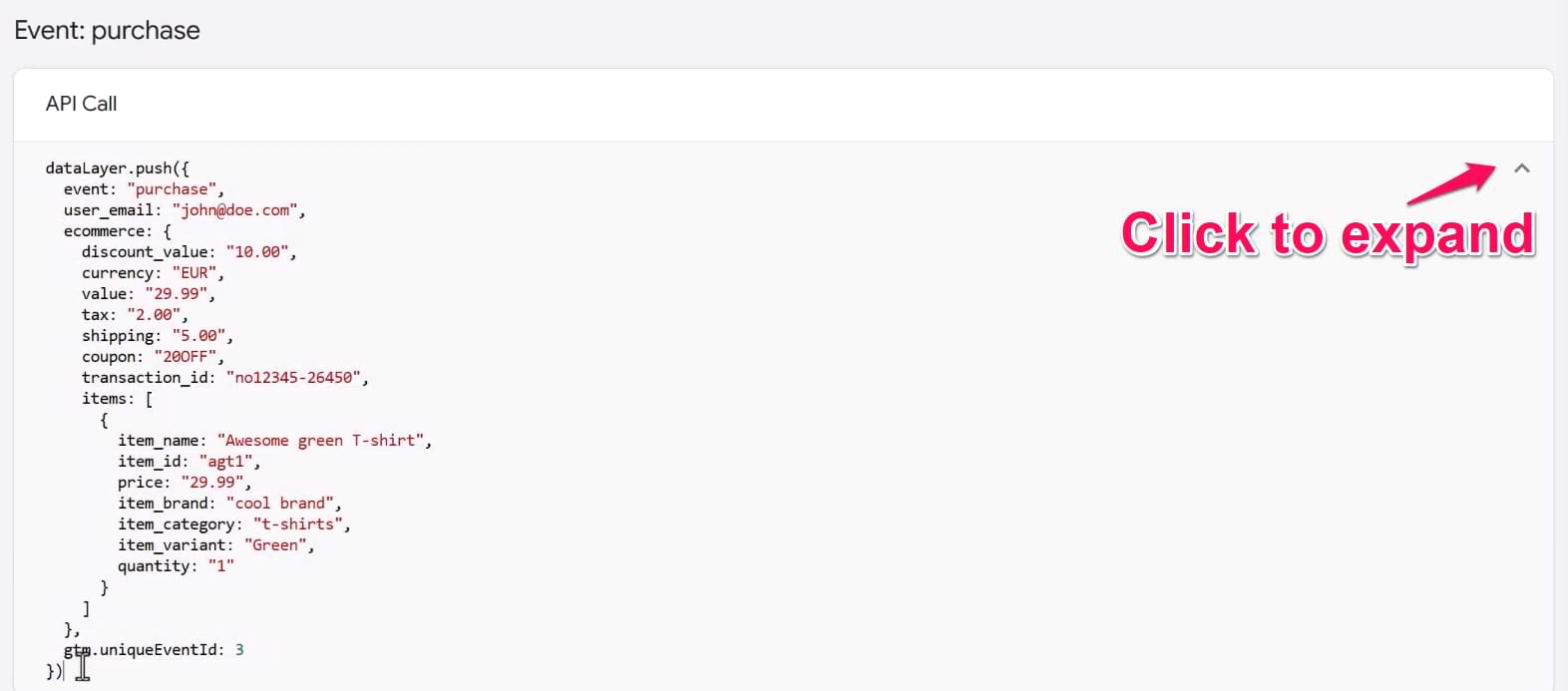
Here you will see the purchase information that was pushed to the Data Layer. Soon, we will send some of this information to Microsoft.
Data Layer variable and a Custom Event trigger
If the data is correct there, it’s time to use some of those data points in our Bing Ads conversion tracking. As a bare minimum, we could pass the order total (value). To do that, we’ll need to create a Data Layer variable.
In Google Tag Manager, go to Variables > New > Data Layer Variable. To access the order value, you must enter ecommerce.value. Read this to learn more about why I entered the dots.
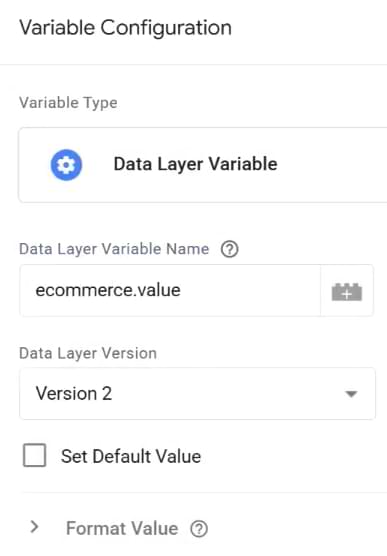
Save the variable.
The next step is to create a trigger. This will handle the moment when our Microsoft conversion tag (that we’ll create soon) should fire.
Go to Triggers > New > Custom Event and enter the following settings:

The reason why I entered purchase is that this is the very same value that is stored in the “event” key of the dataLayer.push.

If, in your case, the event name is a transaction, then that’s what you should enter in the trigger’s settings.
Create a conversion goal in Microsoft Ads
In the Microsoft Ads interface, click Conversions > Conversion goals.
Click Create > Business website. Select Manual setup.
After that, select a goal category – Purchase. Goal type: Event.
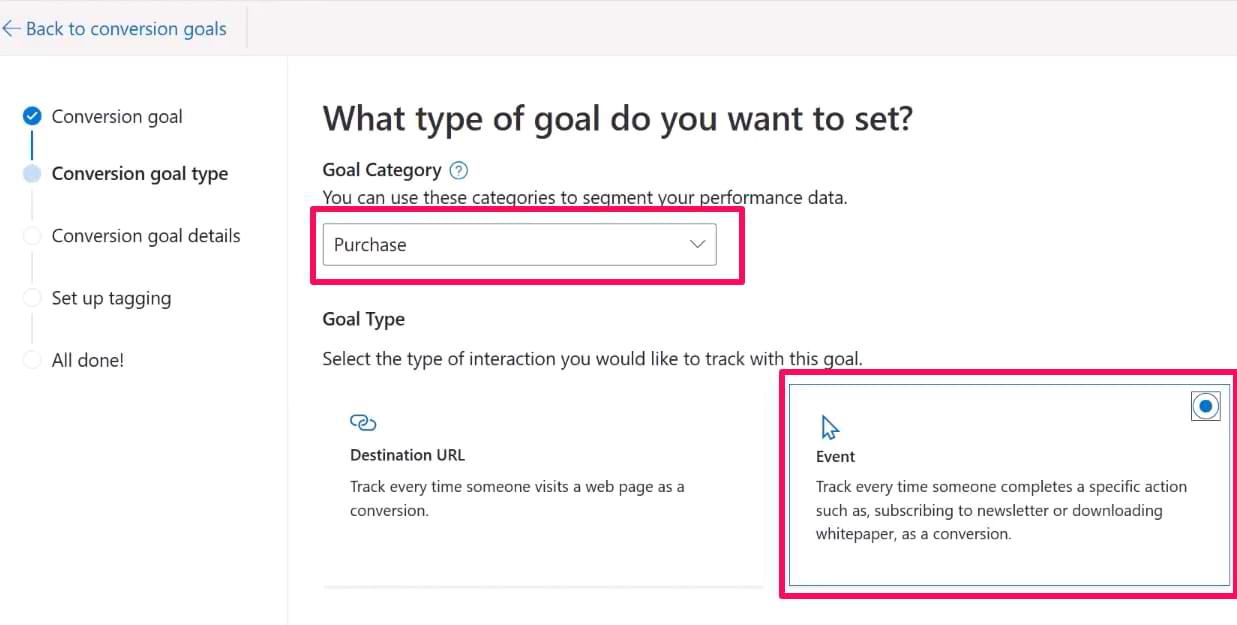
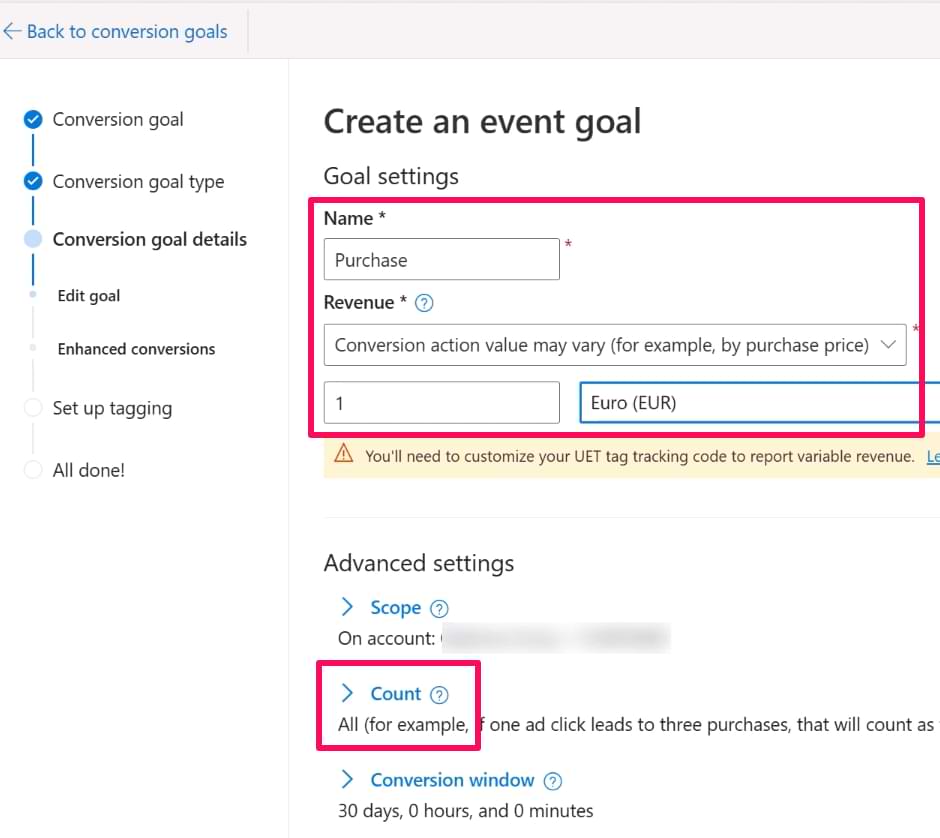
Click Next. Call this goal “Purchase”. In the Revenue field, select “Conversion action value may vary”. Then set the default revenue value. It can be the minimum purchase amount or the average order value. In the Advanced settings, set the count to “All”.
Click Next. Then don’t enable Enhanced Conversions (for now). I will later explain how to configure them. Click Next.
Then, you will be asked if your UET tag is installed. Select the “Yes” option. Click Next.
Select “Manual installation”.
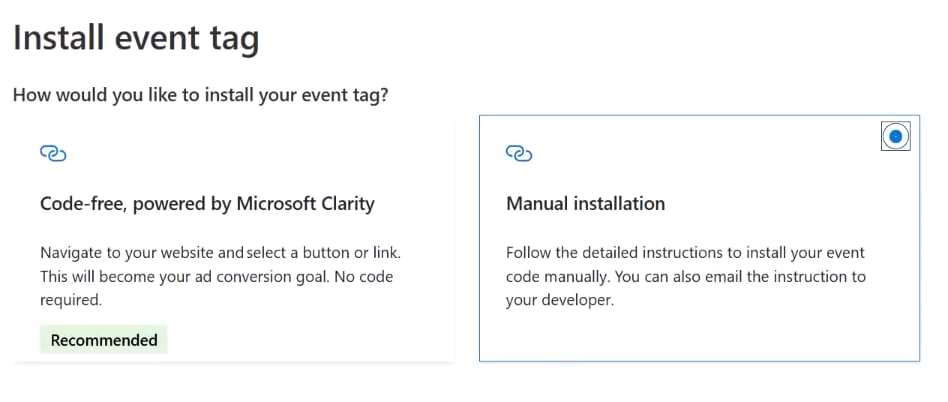
Click Next. And here you will have to set custom parameters. The default settings are enough for us (Action equals to “purchase”). We will later use this value in your Google Tag Manager tag.

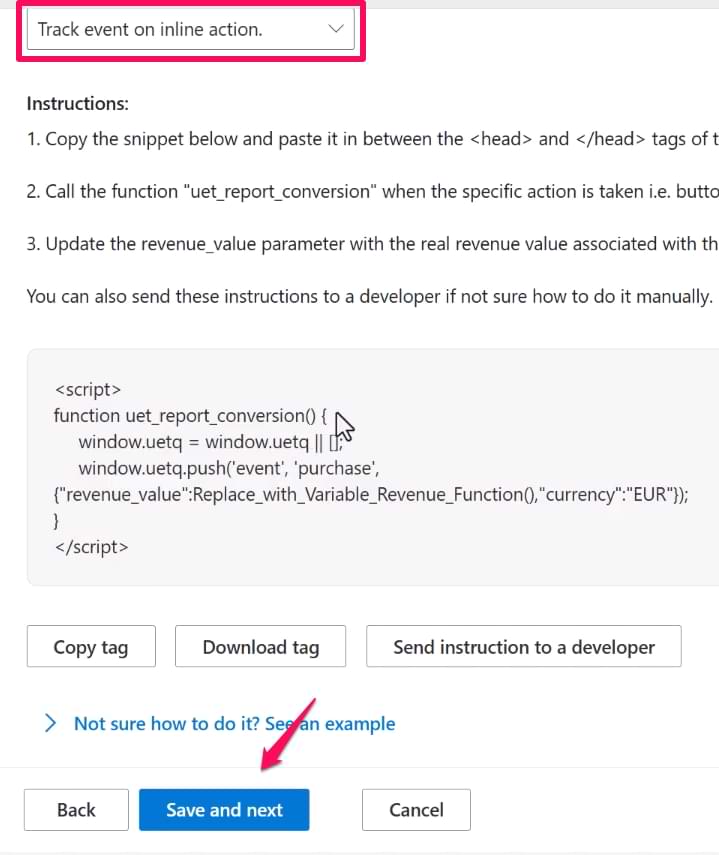
Now, scroll down a bit. In the “When do you want to track this event” field, select “Track event on inline action” and then click “Save and next”.
Purchase tag
The next step is to create a Microsoft Ads UET tag that will send the purchase data to Microsoft. In GTM, go to Tags > New > Microsoft Advertising Universal Event Tracking and enter the following settings:
- Use the same UET tag ID that you used in the Page view tracking setup
- Track type – select Custom conversion
- Enter purchase in the Define your own event action field
- In the Currency field, enter the currency code (e.g., EUR or USD). If your website supports multiple currencies, you can create a data layer variable that fetches the currency and then insert the variable in this field. But in my case, there’s only one currency supported, thus I entered “EUR”
- In the Revenue value, we’ll need to insert the variable that takes the revenue from the data layer.

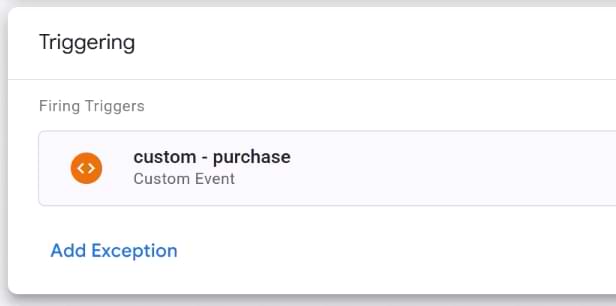
In the triggering section, click anywhere and select the Custom Event trigger that you’ve created in the previous chapter. Save the tag.
Pro tip: consider using a constant variable
In this blog post alone, I have created 2 Bing tags in GTM. But what if you have 10 or 20? Manually copying and pasting UET tag IDs can lead to human errors (and it’s just inconvenient).
Instead, you could create a variable that will always contain the ID. In GTM, go to Variables > New > Constant and paste the UET tag ID that you got in the Microsoft Ads interface (after you created the UET tag).

Save this variable. Now go and update all your Bing Ads tags in the GTM container. Replace static tag IDs with this constant variable. And if, in the future, you have to create a new tag, you’ll be able to reuse that variable with just a couple of clicks.
Let’s test the Purchase tracking with Microsoft Ads and GTM
It’s time to test the setup. Enable the Preview mode of Google Tag Manager. Then, click on the UET tag helper (Google Chrome extension) icon and ensure it is enabled.
Make a test purchase. On the left side of the preview mode, you should see the purchase event. Click it.
Your Bing Ads purchase tag should be displayed as “fired”. Also, your regular Bing Ads pageview tag should also be fired (because the “thank you” page is a page, after all).
Now, click the UET tag helper’s icon, and you will see two events: Page Load (a.k.a. Page view) and Custom Event (purchase). Click Parameter Details under every event and check if the data was sent correctly.

Is everything correct? Publish GTM changes by clicking SUBMIT (in the top-right corner) and then click PUBLISH.
Enhanced Conversions in Microsoft Ads
Congratulations on setting up your first conversions in Microsoft Ads. The next step is to improve your attribution. You can do that by sending additional data to Microsoft (currently, phone number and email address).
This means we’ll be dealing with enhanced conversions.
Enable enhanced conversions in Microsoft Ads
If you have already created a conversion (like we did in this blog post) and now want to turn it into an Enhanced Conversion, follow these steps.
Go to Conversions > Conversion Goals. Select the conversion you want to update. In one of the setup steps, you will be asked to enable Enhanced Conversions. Do that. Also, click the checkbox to agree to Microsoft’s terms of use and privacy policy.

After that, keep clicking Next until you reach the final step.
Check when user data is available
The method of the setup depends on the moment when the user data is available.
- If it’s available even before the Microsoft UET tag is fired, then we’ll set the user data in the Pageview (PageLoad) tag.
- If it’s available later, then we’ll include the user data in the conversion tag (e.g., purchase).
You can check this by using Google Tag Manager’s preview mode. In the screenshot below, I see that user_email is included in the “purchase” data layer event. However, that event fires AFTER the “Initialization”.

This means that my UET Pageview tag will not be able to access the user_email parameter. What’s the solution? To include the user’s email in the purchase conversion tag.
But first, let’s create the data layer variable that retrieves the email address:
Create Data Layer variable(s)
In Google Tag Manager, go to Variables > New > Data Layer Variable. Enter the name of the key where user email is accessible.
I entered user_email because my data layer structure looks like this:

In your situation, the parameter name might differ. Save the variable.
If your data layer also contains the customer’s phone number, you can create a variable for it, too.
Create a Custom JavaScript variable
Since we are going to include the user data in the custom conversion tag, we’ll have to send it as an object (it’s a slightly more complex data structure compared to plain text).
In Google Tag Manager, go to Variables > New > Custom JavaScript. Paste the following code there:
function(){
  return {
    email : {{INSERT YOUR EMAIL VARIABLE HERE}}
 }
}
Replace the {{INSERT YOUR EMAIL VARIABLE HERE}} with the data layer variable that you have created, for example:
function(){
  return {
    email : {{dlv - user_email}}
  }
}
If you are planning to send two parameters (email and phone number), then the code would look like this:
function(){
  return {
    email : {{dlv - user_email}},
    phone_number : {{dlv - phone_number}}
  }
}
Save this variable.
Insert the Custom JS variable in the Purchase tag
Finally, let’s insert this variable in the purchase tag that we previously created. In Google Tag Manager, go to Tags and open your purchase conversion tag. Scroll down until you see the “Define your own event parameters” section. Click “Add parameter”.

Then enter the following settings:
- Name: pid (exactly like this)
- Value: Custom JavaScript variable that you just created

Click “Add” and then save the tag.
That’s it! You have just implemented Enhanced Conversions.
What if user data is available very early (before the UET tag fires)?
In that case, the setup is more straightforward. Open your UET pageview tag and click the “Send enhanced conversion values” checkbox, and two fields will appear (Email address and Phone number).
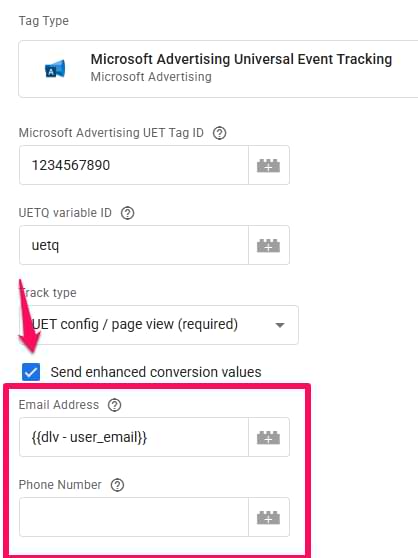
Insert relevant variables in each field and save the tag.
When the UET pageview tag fires (and user data is already accessible), all subsequent Microsoft Conversion tags (that fire on that page) will inherit user data.
But user data is available later (after UET pageview tag fires), then use the aforementioned tracking method (with Custom JavaScript variable and “pid” parameter).
Test Enhanced Conversions
After you have edited your Microsoft Ads tag(s), it’s time to check if they send the data properly. Save all edited tags and enable GTM preview mode.
Complete a conversion (so that Microsoft tags fire). Don’t forget to enable the UET tag helper extension. If you don’t see anything in the extension, complete the conversion again.
After the extension shows the Custom conversion, click “Parameter details” under it. Keep looking for the “pid” parameter. Its value should contain hashed value (which is not readable for the human eye).

In that value, if you see “em=” that is related to the email address. If you also see “pn=”, that stands for phone number. In this example, I sent only the email address.
If you’re seeing something similar, your configuration is correct. You can now publish all changes in Google Tag Manager (by clicking the Submit button).
Where can you see the conversion data in Microsoft Ads?
You can find conversion counts in many reports within the Microsoft Ads interface, e.g., the Campaigns report. Keep looking for the Conv. column (which stands for Conversions). However, keep in mind that you should be checking the data 24 hours after you publish the conversion tracking setup.

As for revenue, if you don’t see that column in your reports, you will have to add it. Click the Columns icon above the table and then click Modify.

Then go to Conversions and select All conv. revenue. Click Add next to it. Done! From now on, you will see conversion revenue metrics in your report as well.
Microsoft Consent Mode
Microsoft now requires you to implement its Consent Mode if your business runs ads in the EU, UK, or Switzerland (just like Google does). The process (compared to Google Consent Mode) slightly differs, and all steps are outlined here.
However, the good news is that if you have already implemented Google’s consent mode on a website. Microsoft UET tags can reuse your existing Google Consent Mode setup. All you need to do is enable “Consent settings” in the UET pageview tag.
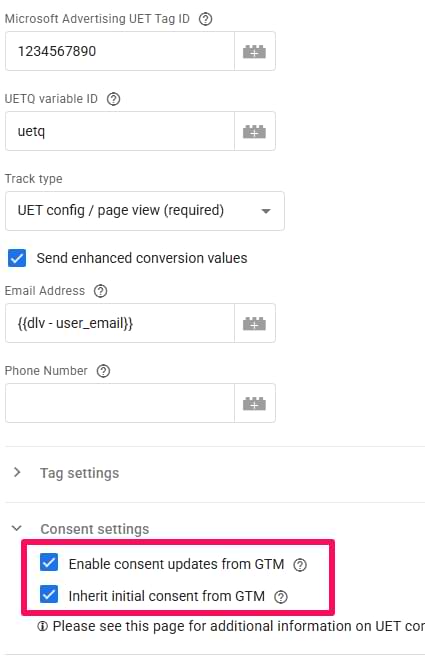
Once you enable these settings, I *highly* recommend that you still check your setup and verify that consent is updated properly. The troubleshooting/verification process is explained in this guide.
Microsoft Ads conversion tracking: Final words
When it comes to Bing ads conversion tracking, you can take several paths. But they depend on your website’s functionality as well.
If you can distinguish (just by looking at the page URL) that a visitor completed an important action, you can create destination URL conversion goals. All you need to do is add the Page view Microsoft Ads UET tag. Bing ads will handle the rest once you configure the goal.
But if your conversions are based on events, not page views, then you should configure additional tags in GTM, send the events and then create event-based conversion goals.
As for purchasing tracking with Microsoft Ads, you could also send the purchase not as a custom conversion but as a Purchase event. However, I found it’s quicker/easier to send it as a custom one.
If you have some questions (or maybe you noticed something wrong in this article), let me know in the comments.

7 COMMENTS
Hello Julius,
Tracking Forms that are in an iFrame as a conversion doesn't work on my end with the steps above. Have you tried it on your end? If so, can you perhaps enlighten us?
Hello XYZ,
This will not work with iFrames. You will need to pass a message from the iFrame into the main webpage and then fire an event based on that. This solution worked for pardot tracking (https://www.ryanpraski.com/pardot-iframe-form-tracking-google-analytics/)
Hello Julius, everything is working on GTM's side, but when I go to Bing Ads to create the event, it doesn't give me an option to set the Category, action, or label. Without manually firing their HTML code snippet, there doesn't seem to be any way to link my GTM event with a conversion goal?
Is this a new change? Any idea what's going on?
Thank you!
Hello,
Would you show us, how install the Dynamic Remarketing Tag in Microsoft Ads?
Hi Julius,
Does Bing have the capability to track a AJAX form fill? For example, how we've set up an event in GA4 (with your tutorial's guidance) for a form fill where there is an inline thankyou message, instead of the user being brought to a confirmation page. I'd love to know how to set up an event like that on the Bing Smart tag, if doable. thanks!
Hi Julius,
I'm setting up conversion tracking for Bing Ads but when creating a custom conversion the option to add the Microsoft Advertising UET Tag ID disappears.
The tag is working and triggering fine in GTM but it's not connecting to the UET Tag (and the event isn't triggered in the UET Tag Helper add-on).
It looks like this might be a recent bug as it doesn't seem to be flagged in your video.
Any advice on how to work around this? Thanks!
Hello Julius,
Is it possible to report the transaction ID from the Bing Ads platform ?
I just installed the pixel with Transaction ID in the data layer but I don't see where to report it.
Thanks !