


September 28, 2026
How to Track Outbound Links with Google Tag Manager and Google Analytics
Updated: September 28th, 2026. It’s time for a guide that’s for those who are just starting with Google Tag Manager.
There is a high chance that your website contains some external links (a.k.a. outbound links). People might click them, and they will be redirected to another domain.
Google Analytics 4 can track some of those clicks automatically with Enhanced Measurement. But if you want more control over which links are tracked and what data is sent, Google Tag Manager might be a better tool for the job.
In a nutshell, to track outbound links with Google Tag Manager, you create an Auto-Event Variable that returns true when the clicked link leads to another domain, use that variable in a Just Links trigger, and fire a Google Analytics 4 event tag that sends the link URL, domain, and text.
Still not clear? Then continue reading. In this blog post, I will explain why outbound link tracking is useful, how GTM compares to GA4 Enhanced Measurement, how to set up and test the tracking, and where to find the data in GA4.
Table of contents
Here’s what you will learn in this article
- Want to learn more about click tracking in GTM?
- Why should you track outbound links at all?
- GA4 Enhanced Measurement vs GTM: Which should you use?
- Where to find outbound link click data in GA4?
- Common problems with outbound link tracking
- Final words
Want to learn more about click tracking in GTM?
I have prepared a bunch of resources where you can learn more about Google Tag Manager click tracking in general. Pick the one you prefer the most:
- Guide: Google Tag Manager click tracking
- Free course: Google Tag Manager fundamentals
- Premium course: Google Tag Manager for Beginners. Also, you can learn even cooler tracking techniques in my Intermediate GTM course.

Why should you track outbound links with Google Tag Manager at all?
Outbound link tracking gives you a better understanding of user behavior: which external resources visitors go to, from which pages, and how often. Not every outbound link click means that the visitor was lost. Think about links to your social media profiles, to your partners, or to other websites that your business owns.
What if your business owns multiple websites that are using different domains? You might be interested in which links are most clicked, right?
Long ago, link clicks had to be tracked manually. This means that if you are interested in clicks on 5 links, a developer had to add certain code to those links to start tracking those clicks as events.
What if you want to track 5 more links? Yup, you need to contact a developer once again. But with Google Tag Manager, you can automate this process yourself.
I don’t check the total number of outbound link clicks (because that tells me nothing). But if I have a certain question, e.g. “do visitors on that page click any outbound links?” or “what do visitors do on that particular page?”, the story is totally different.
And thanks to Google Tag Manager, you can set it once and leave it (unless, of course, the domain of your website changes).
Another possible use case for outbound link clicks is affiliate/partner marketing. Without additional configuration, you can see what kind of traffic volume you are sending to them. (By the way, if affiliate links are your main focus, take a look at this guide on tracking affiliate link clicks.)
GA4 Enhanced Measurement vs Google Tag Manager: Which should you use?
Google Analytics 4 Enhanced Measurement tracks outbound clicks automatically as a “click” event, while Google Tag Manager requires a few minutes of setup but lets you decide which links are tracked, how the event is named, and which parameters are sent. For a quick overview of outbound clicks, Enhanced Measurement is often enough. For anything more specific, use Google Tag Manager.
Here is how the two options compare:
| GA4 Enhanced Measurement | Google Tag Manager | |
|---|---|---|
| Setup | Automatic (a toggle in the GA4 data stream settings) | Manual (variable, trigger, tag) |
| Event name | click (shared with other click tracking) | Your choice, e.g. outbound_link_click |
| Link text | Not captured | Captured with the Click Text variable |
| Which links are tracked | All links to other domains, including some you might not want (e.g. javascript:void(0)) | Only links that match your trigger conditions |
| Custom click parameters | Not possible | Possible (e.g. link type, page section) |
One more difference: links to domains configured in the GA4 cross-domain tracking settings are not treated as outbound by Enhanced Measurement. With Google Tag Manager, you control that yourself via the Affiliated Domains field (more on that in Step 1).
If you choose Google Tag Manager, turn off outbound click tracking in GA4 Enhanced Measurement. Otherwise, the same click will be sent to GA4 twice (once as “click” and once as “outbound_link_click”). To do that, go to GA4 Admin > Data streams > your web stream > Enhanced measurement (gear icon) and disable Outbound clicks.
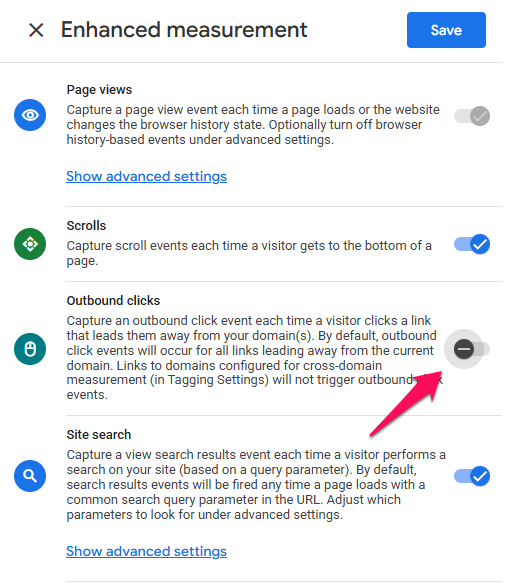
If you want to learn more about the automatic option, read How to track Outbound Clicks with Google Analytics 4.
Step 1. Create a variable that tells GTM whether the link is outbound
The first step to track outbound links with Google Tag Manager is an Auto-Event Variable that returns true or false based on whether the clicked link is outbound or not.
To do that, go to Variables > User-defined Variables > New and choose Auto-Event Variable.
Then enter the following configuration:
- Variable type: Element URL
- Component Type: Is Outbound
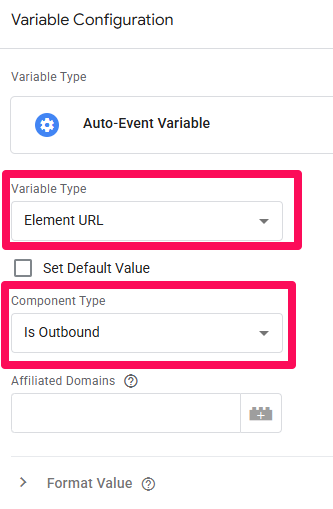
This is the bare minimum you will need to use in order to distinguish the outbound link from an internal link. This variable will return true if a visitor is on https://www.yourdomain.com and clicks a link that redirects to:
- https://www.someotherwebsite.com
- or a different subdomain that belongs to your domain https://blog.yourdomain.com
If you want to treat more websites as internal, you can use the Affiliated Domains field. Separate each domain with a comma.
Important: every item in the Affiliated Domains field is matched with the operator “contains”. So if, for example, you want to treat ALL your subdomains as internal (because by default, they are external to this auto-event variable), just enter yourdomain.com (replace it with your actual domain). Don’t use www, https, etc. Just the top level of your domain.
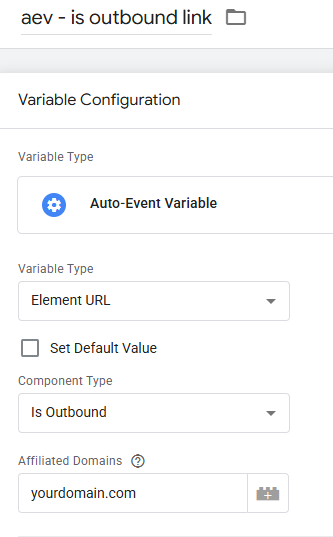
I named this variable “aev – is outbound link”. You will need that name in the next step.
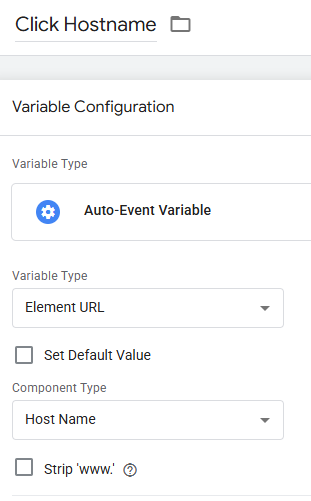
While you’re in the Variables section, create one more Auto-Event Variable. It will return the domain of the clicked link, and we will send it to GA4 in Step 3:
- Variable type: Element URL
- Component Type: Host Name
- Name: Click Hostname
Also, enable click-related built-in variables in Google Tag Manager. Go to Variables > Configure and click the checkboxes next to every click variable (or at least Click URL and Click Text).
Step 2. Enable a link click trigger in GTM
By default, Google Tag Manager does not track clicks. You can check that by enabling the Preview and Debug mode and clicking any link on the page. If you’re working on a fresh new GTM container, you will not see any Link Click events on the left side of the preview mode.
In order to start seeing Link Click events in the preview mode, we need to have at least one Link Click trigger enabled on a page.
In Google Tag Manager, go to Triggers > New > Trigger Configuration > Just Links. Then choose Some Link Clicks and enter the following condition:
aev – is outbound link (that’s the name of the variable I created in Step 1) equals true
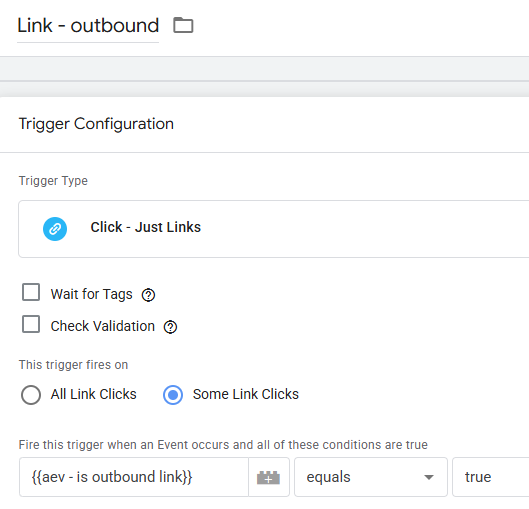
Speaking of two checkboxes, here is a quick overview:
#1. Wait for tags. It is useful if the link opens in the same browser tab. If you have any tags linked to the link click trigger and Wait for tags is enabled (say for 2000 milliseconds), GTM will put the redirection temporarily on hold (for up to 2000 milliseconds) to give tags a chance to properly fire. Once the tags have properly fired or 2000 milliseconds have passed, the user will continue navigation to another page.
One practical tip here: GA4 event tags are usually sent with the browser’s beacon method, which is designed to survive page navigation. So in most cases, you can leave Wait for tags disabled for this setup.
#2. Check Validation. It checks if the click was valid (for example, that another script did not prevent the default action of the link). Usually, I leave this checkbox unchecked.

Step 3. Create a tag
Now, let’s send outbound link clicks as events to Google Analytics 4. In Google Tag Manager, go to Tags > New > Tag Configuration > Google Analytics > Google Analytics: GA4 Event.
And enter the following settings:
- Measurement ID: your GA4 Measurement ID (it looks like G-XXXXXXXXXX)
- Event name: outbound_link_click
- Event parameters:
- link_url: {{Click URL}}
- link_domain: {{Click Hostname}}
- link_text: {{Click Text}}
- Triggering: the Just Links trigger you created in Step 2
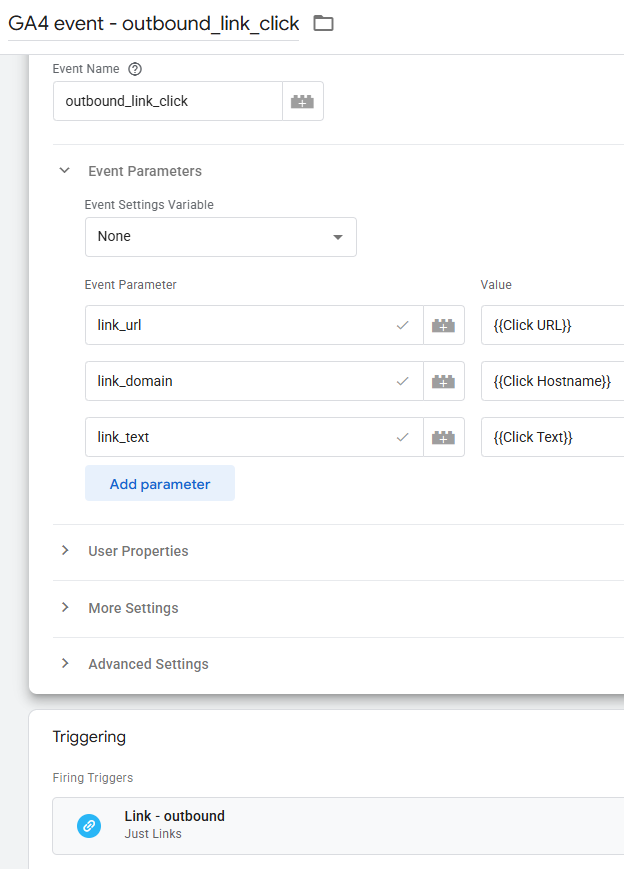
You can add more parameters if they are meaningful to you. For example, link_classes ({{Click Classes}}) can help you tell apart a button click from a text link click when both lead to the same URL.
Why these exact parameter names? Because Google Analytics 4 already has built-in dimensions called Link URL, Link domain, and Link text. They are populated by the link_url, link_domain, and link_text parameters. If you use these names in your GA4 event tag, you won’t need to register custom dimensions for them. If you use different names (e.g., clicked_url), you will have to register them as custom dimensions in GA4 first.
Step 4. Test
Enable (or refresh) the Preview and Debug mode, go to your website and refresh the page. Here are scenarios you should test:
- Click an internal link (e.g. the one that opens a “Contact us” page). The outbound link GA tag must not fire.
- Click an external (outbound) link. The GA Tag must fire.
If the tag did not fire, click the Link Click event in the preview mode, then click the tag and scroll down to the Firing triggers section. Conditions that were not met are marked with a red X.
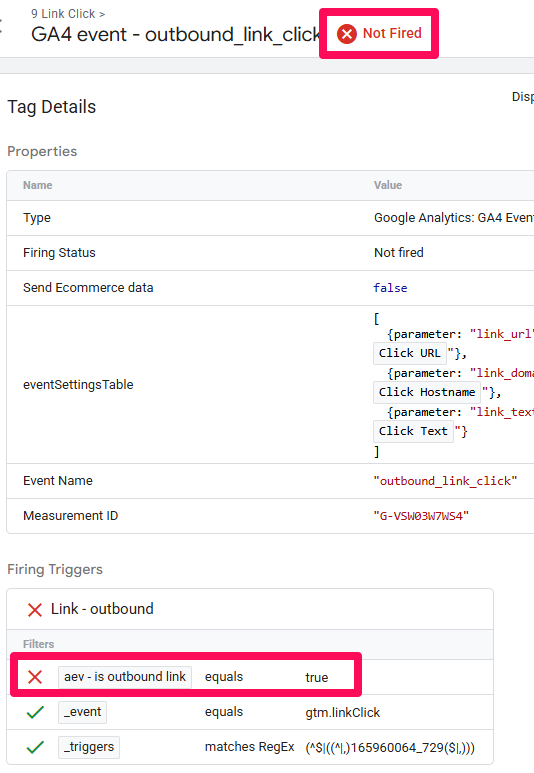
One more thing to do (to make the trigger more precise): click an email (mailto:) or phone (tel:) link, if your site has one, and look at the value of the “aev – is outbound link” variable in the preview mode.
It should return true, and you don’t want to track those links as outbound clicks. So, add two more conditions to your trigger: Click URL does not start with mailto: and Click URL does not start with tel:.
And add one more condition: Click URL does not contain javascript:void(0). Some websites might have such links and you don’t want them to trigger your tag.
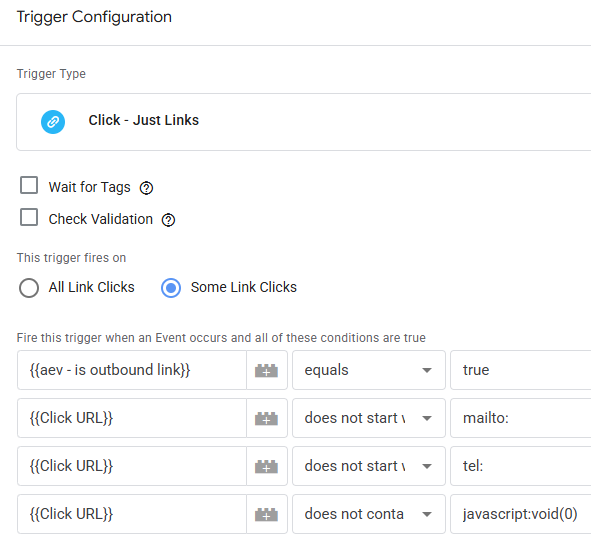
Save the trigger and repeat the test. Click an outbound link, see if the tag fired and then check if values inside that tag are correct:
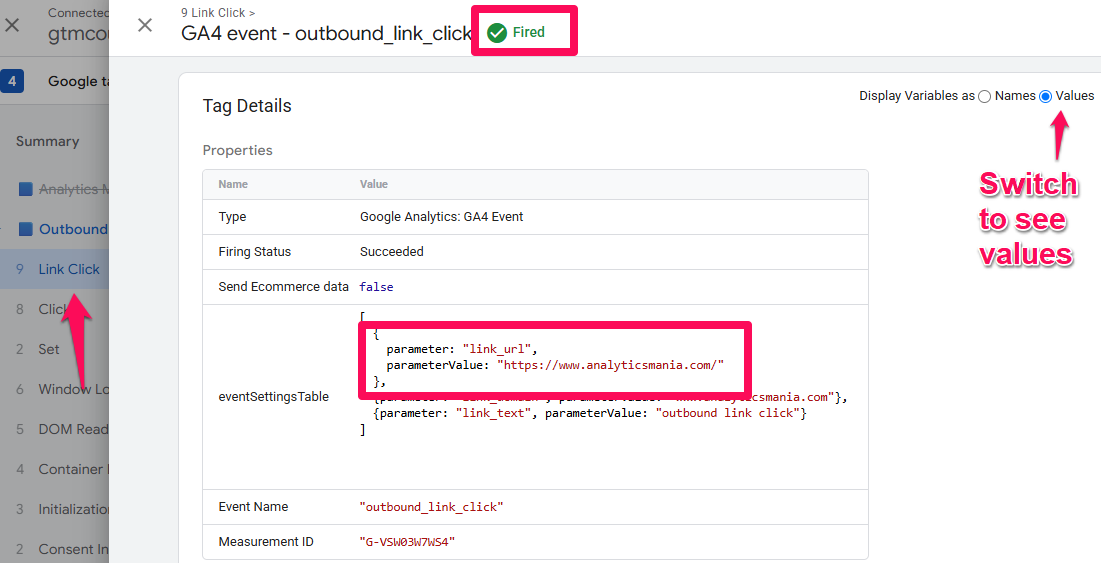
Then check if the data reaches Google Analytics 4. In GA4, go to Admin > Data display > DebugView. When the Google Tag Manager preview mode is enabled, your events should appear there within a few seconds. Click the outbound_link_click event to see its parameters.
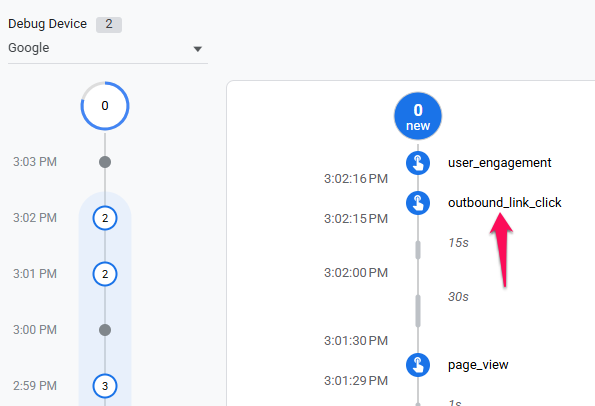
If, for some reason, you don’t see the data in DebugView, read this guide.
Once everything works, don’t forget to publish your GTM container.
Where to find outbound link click data in GA4
After you made sure that outbound link click events appear in GA4 DebugView, you should wait a bit until they appear in standard GA4 reports. Usually, it takes several hours, but you should prepare yourself to wait for up to 24-48 hours.
The quickest way to find the outbound_link_click event in Google Analytics 4 is Reports > Engagement > Events. This will show you how many times the event was sent.
To see which links were clicked (and on which pages), build a free-form exploration in GA4:
- Dimensions: Link URL (if you add Page path, you will see where that link what clicked)
- Metric: Event count
- Metric: Total users
- Filter: Event name exactly matches outbound_link_click
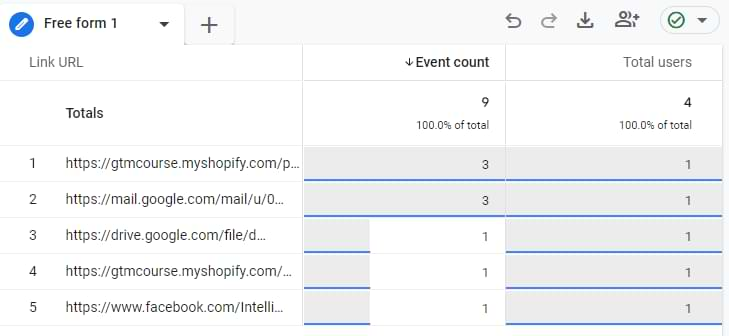
I explain more options (including a customized standard report) in Where to Find Outbound Click Data in Google Analytics 4.
Common problems with outbound link tracking
Why does my outbound link tag fire when I click links to my own subdomain?
The Is Outbound component of the Auto-Event Variable treats other subdomains of your website (e.g. blog.yourdomain.com) as outbound by default. To fix this, enter your top-level domain (e.g. yourdomain.com, without www or https) in the Affiliated Domains field of the Auto-Event Variable.
Why are outbound clicks counted twice in GA4?
Outbound clicks are counted twice in Google Analytics 4 when both GA4 Enhanced Measurement and your Google Tag Manager setup are tracking them. You will see the same click as a “click” event and as an “outbound_link_click” event. Disable Outbound clicks in the Enhanced Measurement settings of your GA4 web data stream.
Can I track outbound links opened with right-click > Open in new tab?
No. When a visitor right-clicks a link and chooses “Open in new tab”, no click event happens in the browser that Google Tag Manager could listen to. Clicks made with the middle mouse button or with Ctrl/Cmd + click are a different story, and the Just Links trigger usually catches them.
Track Outbound Links with Google Tag Manager: Final words
I remember when I started working with Google Tag Manager. I think that the second thing I implemented via GTM (after pageviews) was outbound link tracking (because it was simple to configure + Google Analytics did not track this automatically back then).
I hope this blog post made outbound link tracking with Google Tag Manager and GA4 less mysterious. Let’s quickly recap:
- Create an Auto-Event Variable that returns true if the clicked link is outbound (and use Affiliated Domains for the domains that you consider internal).
- Create a Just Links trigger that activates tags only if the clicked link is outbound.
- Create a GA4 event tag that sends the outbound_link_click event with link_url, link_domain, and link_text parameters.
- Disable outbound clicks in GA4 Enhanced Measurement to avoid duplicate data.
- Test with the GTM preview mode and GA4 DebugView, then publish the container.
- Optionally, mark the event as a key event if outbound clicks are important to your business.
If you want to learn more tracking techniques like this one, take a look at my Google Tag Manager course for Beginners.
28 COMMENTS
Well, let me tell you something. I've now read 4 or 5 different guides on how to track external links using Tag Manager. And I've wasted literally hours (nearly days) of my life that I'll never get back. Absolutely nothing has worked. And I'm pretty good at reading and following instructions.
I've landed on this page and I've followed all of the instructions down to a 'T'. Right down to downloading the json file and importing a new recipe and then creating a new analytics id variable.
HA! Everything works perfectly! We're tracking like a tracking machine! Well and truly bookmarked and all subscribed. Definitely coming back here next time I want to know something. Thanks Julius!
Same here! Loads of days wasted - glad I found this page!!
Great tutorial - finally outbound link tracking in GTM makes sense! This might be more of a GA Events question than GTM, but is there some easy, general way, to track what type of link was clicked? For example, say I have links on my page that all go to the same outbound page, but one is a link from a button, one is from an image and one is from a text link. Is there any easy way to pass that level of detail on in eg, the event label?
Passing click classes is an easy way. Another way could be to ask a developer to add some custom parameters to the link and then you would fetch them with an auto-event variable.
Hi thanks very much for the explanation. However I need to track only certain outbound links: they all send to drive.google.com documents. Hence I tried to add to my trigger a Check validation, and added page URL contains "portfolio-item" where I have these links (actually the link of the ages is www.mydomain.com/portfolio-item/post-name). However the tracking is performed also on external links that are situated in other pages rather than portfolio-item. Am I doing something wrong? Thanks
Just create a regular link click trigger where Click URL contains drive.google.com. Disable the Check validation checkbox.
That simple! Thanks
Is there any way to track outbound link events if users opens external link to new tab by using mouses right click functions?
You mean "Right-click" > Open in new tab? No. That is impossible with JavaScript in general. no tool or developer can do that.
Hi, this is great (also hope you open up your intermediate course again soon, I will be an eager customer) - but I've got some very strange things happening with a client site. Trying to track external clicks to social which appear to be added via a wordpress plugin. Thirs trigger works, but it's not returning anything to the data layer for the click target (blank). Instead there are additional FormSubmit events happening on click where the destination URl seems to be getting split with the final page path appearing as element target and the rest of the page path appearing as element url.
This is the website - https://qlddrones.com.au/
it's the links at the bottom of the page I'm trying to track, ideally with just one event that passes the url as event lanel. I realise I can track these as form submits but it seems like a perverse way of going about it and as I need to track other forms would really prefer to keep things neat and sensible - any assistance greatly appreciated.
Hi, the best way to get into my course is to join the waiting list (I see that you tried to do that but you haven't confirmed your email). I urge you to complete the confirmation process.
Just tried to track clicks on your website (social links in the footer). Everything worked fine.
"Just links" trigger will not capture the Tag Manager's preview button clicks. Only "All clicks" trigger does that. So, my guess is that you are confusing trigger types somewhere. You need to use the Just Links trigger. Take a break and try to look at it with the fresh look.
(I also had enabled the "Form submit" trigger but no form submits are visible in my preview mode).
Actually following on from my last - its more bizarre than that - I get the AEV variable returning true on some clicks, but these are returning the following as the click URL
https://www.gstatic.com/images/icons/material/system/1x/keyboard_arrow_up_white_48dp.png
That appears to be the up arrow icon from the Tag Manager Debugger!?!?!?
It's like debugger is interefering with the tracking or someting.
I can get click events with sensible click CLASSES like "x-icon-facebook-square" but the AEV variable returns FALSE for these clicks and click target is blank.
There seems to be someting seriously weird happening on this site, Again anything to point me in the right direction would be appreciated. Thanks.
Hi Julius,
Thanks for the awesome guide! It was really helpful.
I'm wondering if it's possible to set up outbound link click tracking for a specific page on a website OR if it's possible to view outbound link clicks for that page only. For example, if we have a careers page that sends our users to ADP to view job postings and submit applications on there, is there a way to only view outbound link clicks that occur on the page that directs users to ADP?
Thank you very much.
Add a "Page" secondary dimension in your GA event reports and you will be able to identify clicks on a particulae page.
I want to know that how many comes form a specific website where three links leading to three different pages of my website. I want to counter the number of clicks on those links leading to my pages from that specific external page and know which links are leading to a purchase. How can I do that? I failed to do this after reading this article.
Hi Julius. Great help. Thank you. question please: In Step 3 Create a tag, you use the text "outbound link click" which also shows up under Category in your GA.
If I insert my Variable (with the same name) it just says "true" in GA.
But if you don't have the actual Variable there how does the whole thing work?? Isn't the Variable essential??
I don't use a variable in the category. You shouldn't too. Variable is needed in the trigger, not tag.
Hi Julius, I tried this method and it works for all the outbound link clicks such as social media profiles also. How can we rectify this?
I need to track only one outgoing website link(which is opening on the same window) from my site. Please help
Update your triggers to be more specific. If you want to exclude social links, you can add additional conditions where click URL does not contain facebook.com, twitter.com, etc.
Hi Julius,
Everything worked! Thank you!
Does this also record on which page the user clicked on the specific outbound link? I've set up two goals for two specific outbound links. Will the goal flow show on which page the user was when they clicked on the outbound link?
I've got to the testing portion and still not seeing anything happen without outbound links. Question, if I have my outbound links set to open in a new tab, will the above tutorial still hold true?
My Tag summary visually does not look like the above. When I click the 'link click' there is nothing that shows tags.
Hello Julius!
I would link to rename or assign names to the URLs being tracked under outbound link click events and then sort them into folders. I have a few articles with product links in them, so for me to easily identify which product links are being clicked, I would like to rename or assign the actual product names or link names to the URL and then, organize them into their own folders, which would be the article titles. Can you please help? I appreciate your time!
Hi. There is no such thing as folder in Google Analytics. And to get the product names, you could cooperate with a developer and implement data attributes https://www.bounteous.com/insights/2017/07/07/track-more-click-detail-data-attributes-and-google-tag-manager/
Hello, the outbound link I need tracked is dynamic and the end of the url changes each time it's clicked, how do I track this?
This changes nothing in your setup. Click URL will fetch the clicked URL regardless of how it ends. Outbound click tracking depends on the click URL domain, not the ending of the URL. Unless you mean the ending of the domain.
Then use regular expressions in your trigger,e.g. Click URL matches regex (ignore case) mywebsitedomain\.(com|net|es)
This expression will match mywebsitedomain.com, mywebsitedomain.net, mywebsitedomain.es
I run a blog where I want to be able to report how many clicks are heading to certain websites. I have a very large amount of outbound links, so I'd be happy to have a full report I could sort through that would show each individual URL clicked on. Is this possible? Or do I need to set up tracking for each of the URL's I want to track?
Alternatively Tag Manager does not let me input "Outbound Link Click" as the category, it makes you choose from their list. What can I use from their list to understand this is the Outbound Link Category?
Yes, you can create a single trigger that matches all your header links. But the final configuration depends on a website and it's impossible for me to provide a solution without seeing it. It could be something like "click class contains XXX" or maybe some advanced solutions might be needed (that involve CSS selectors).
I am not sure I understand what you mean by saying "it makes you choose from their list". What list?
Hi Julius,
This blog has been so helpful!!
I am looking to track oubound links to our sponsor websites (the links are located behind a logo image) for sponsor recognition data.
We have multiple sponsors which are recognized on multiple pages of our website, most sponsors are recognized on multiple pages.
Ultimately, I need to be able to have a full report that identifies how many times each individual sponsor link was clicked and on which webpage of our site this outbound link click took place. Is this possible? Or do I need to set up tracking for each of the URL's I want to track?
Thanks!